How to …
Load a set or a clip
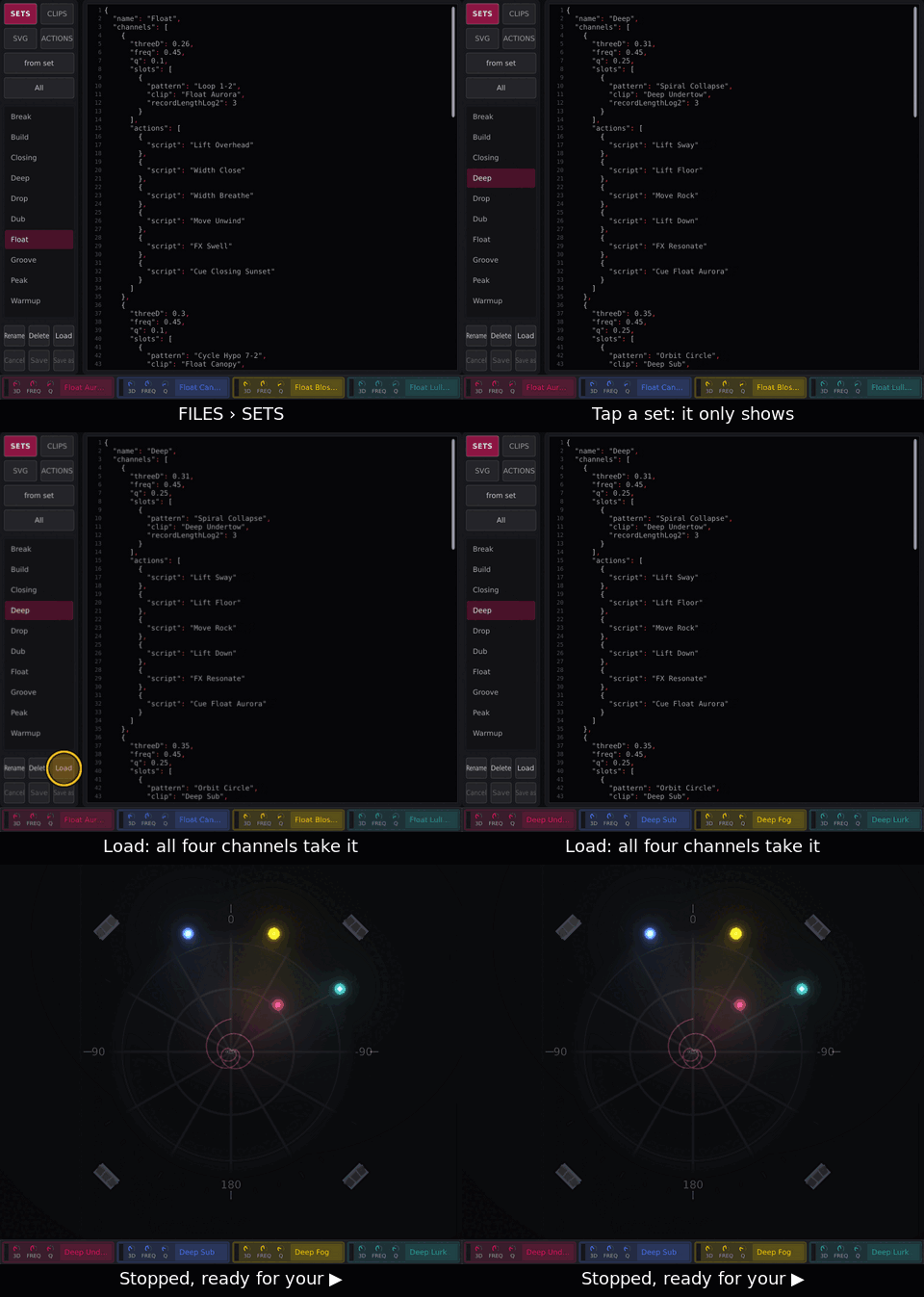
Tap FILES (global strip).
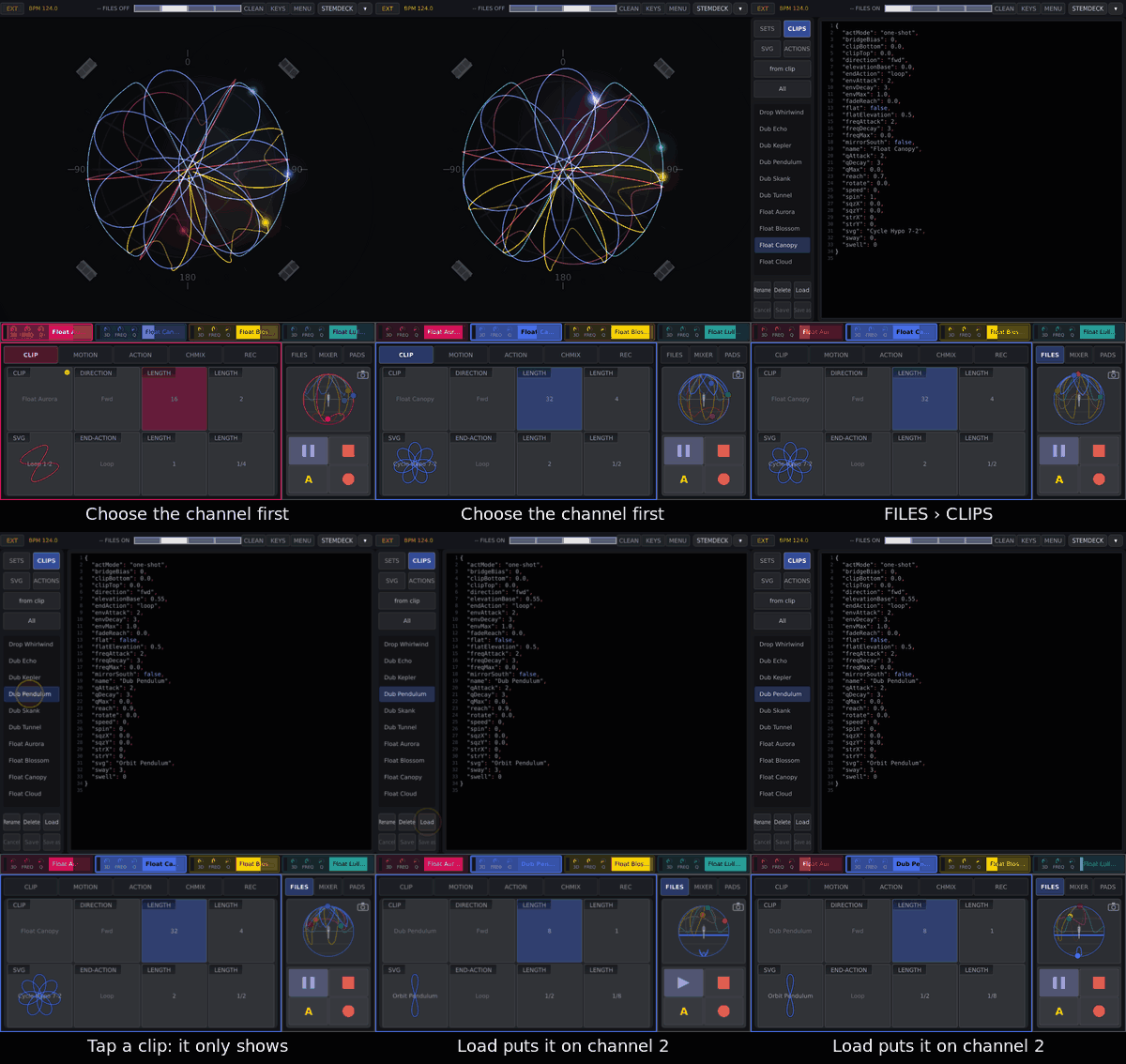
SETS or CLIPS (for a clip, select its channel first).
Tap a row: it only shows in the editor.
Load: a set onto all four channels, a clip onto the selected one. Shipped sets load stopped (start with Play|Pause or PLAY all); a set saved while playing restarts its clips on the next downbeat.
Tap FILES again, or any tab, to close.
Warning
Loading a set mid-set stops all four clips and jumps 3d, freq and Q to the set’s values. The room hears it.
Play and stop a clip
To |
Do |
When |
|---|---|---|
start, or go on after a pause |
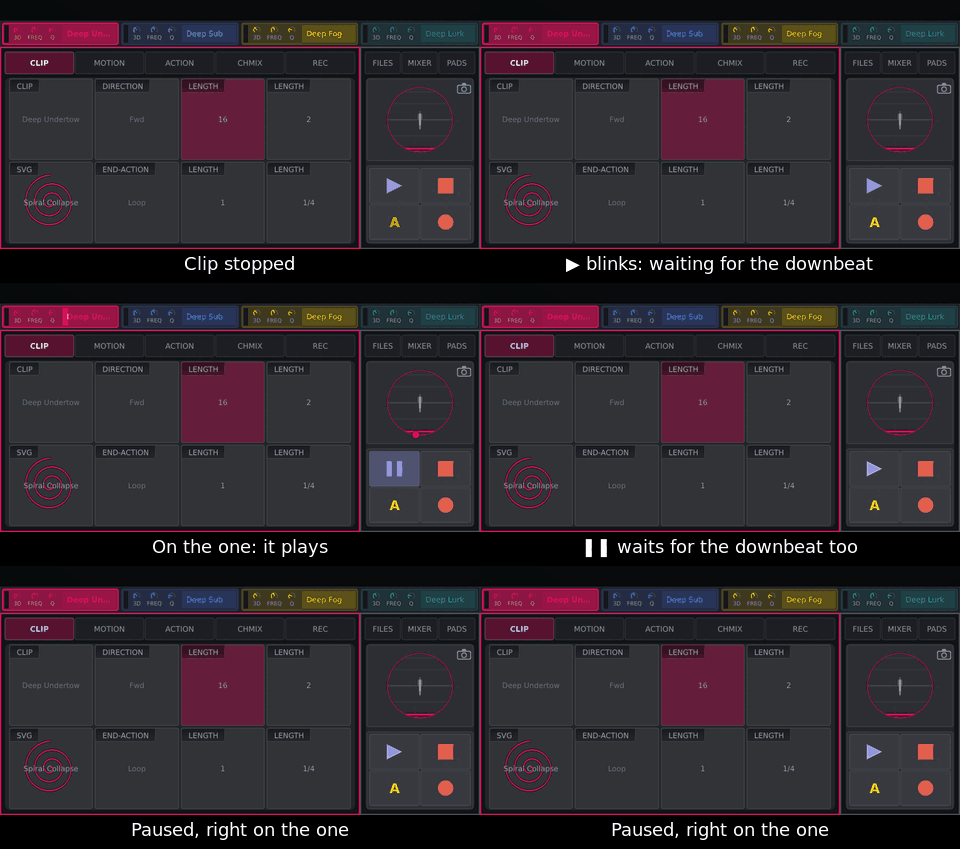
Play|Pause pad, or ▶ |
next downbeat (blinks while waiting) |
pause |
Play|Pause again, or ❚❚ |
next downbeat |
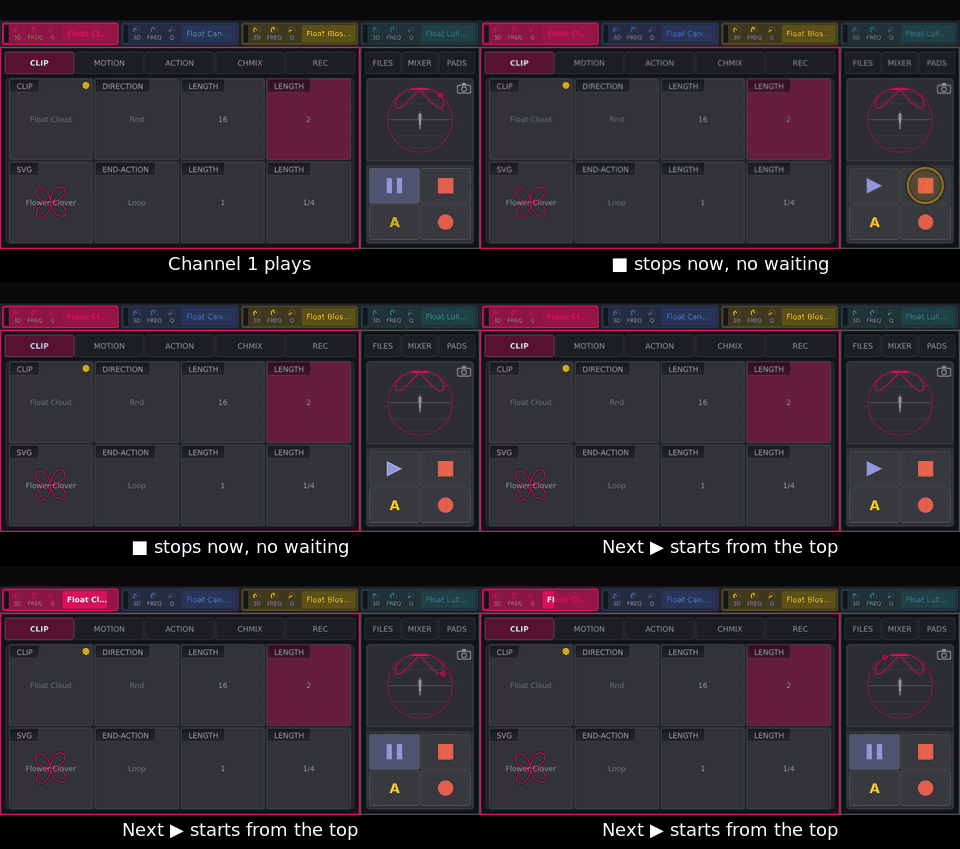
stop, back to the top |
SHIFT + Play|Pause, or ■ |
now |
start from the top, now |
SHIFT + Play|Pause on a still clip |
now |
cancel a waiting start |
Play|Pause while it blinks |
now |
start all four |
PLAY all (panel end column, or PADS), when nothing plays |
next downbeat |
pause all that play |
PLAY all while something plays |
next downbeat |
PLAY all is one key: it pauses what plays, or starts what stands still; a double tap sends the channels it reached back to the top. A pause keeps the place: the next start goes on from where it stood, on a downbeat, so it lands on the music’s bars again. While paused, ▶ and the pad blink slowly, two beats on, two off. SHIFT or ■ forgets the place, and the next start begins at the top of the shape. Either way the sound stays where it is until the clip plays again.
Move a sound by hand
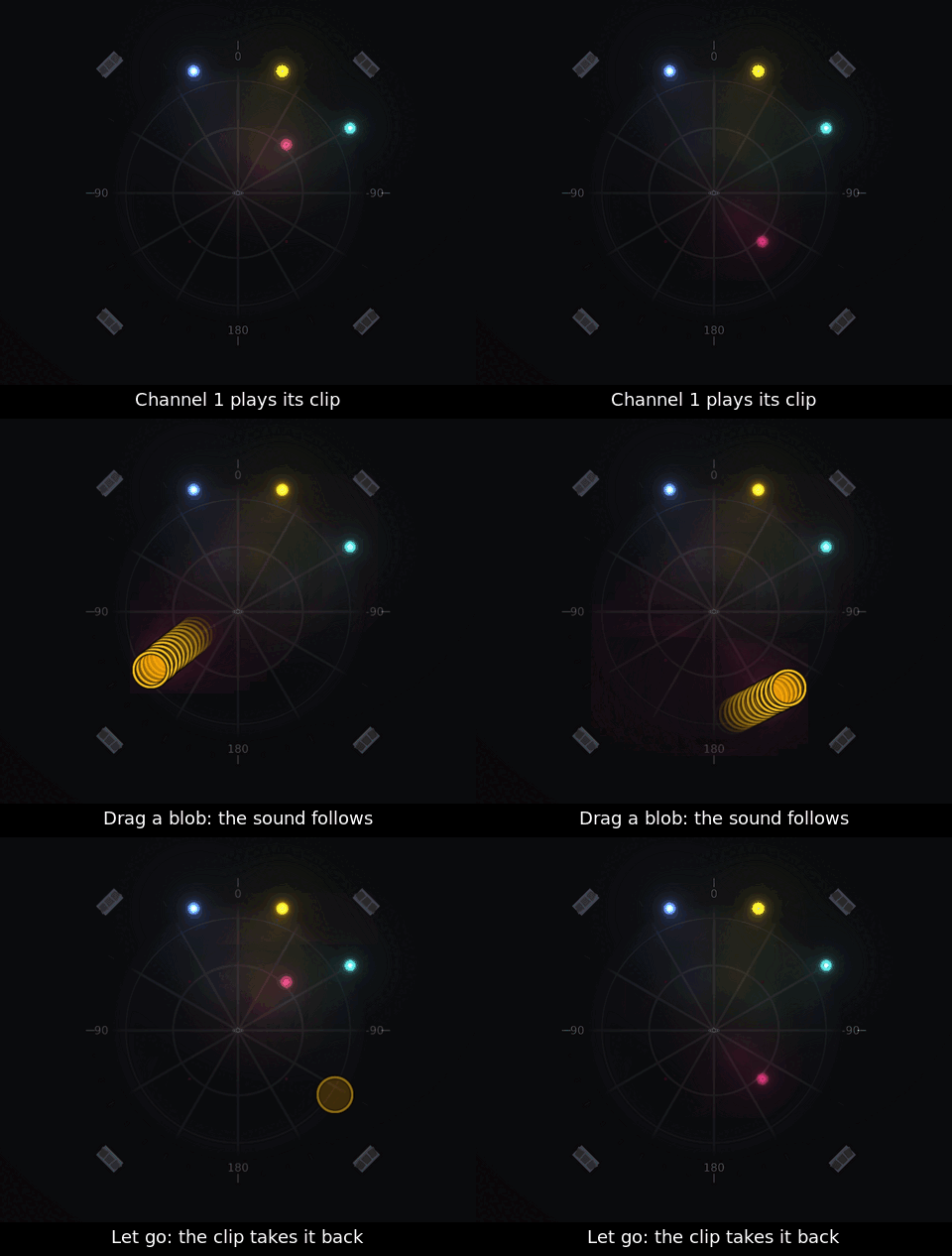
Drag a blob — the finger must land on it. The room follows live, not on the beat.
Let go: a playing clip takes it back; a stopped one leaves it there.
Two fingers take two blobs. Seen from straight above, as the sphere starts, its middle is overhead and its rim is ear height. Front is 0° at ear height, the direction Core’s speaker layout calls 0°: the rim’s top point. Turned in camera mode, front turns with the room. A dragged blob pushes others aside on the screen only, so you can reach it; their sound stays where it is, and they ease back when you let go.
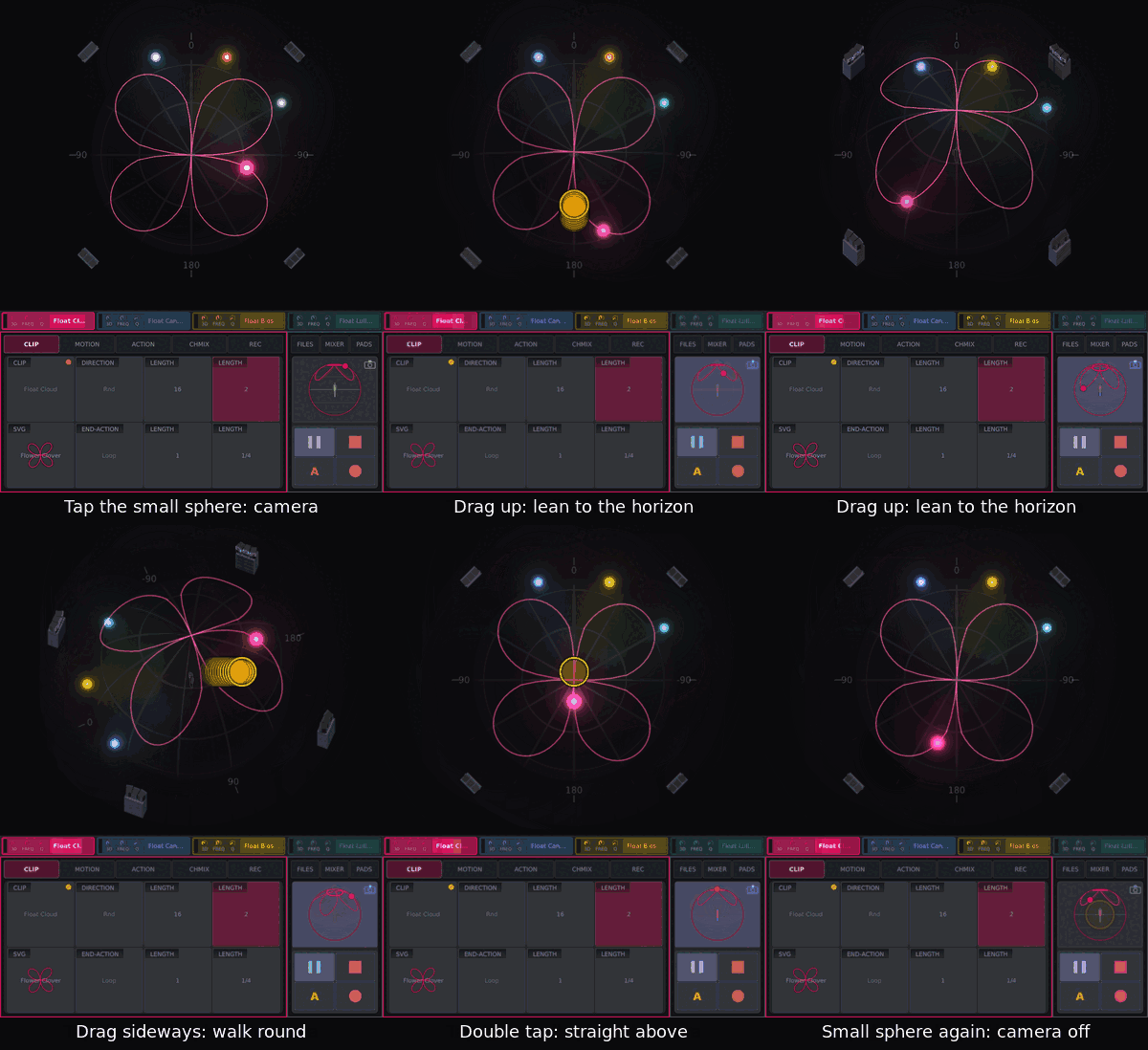
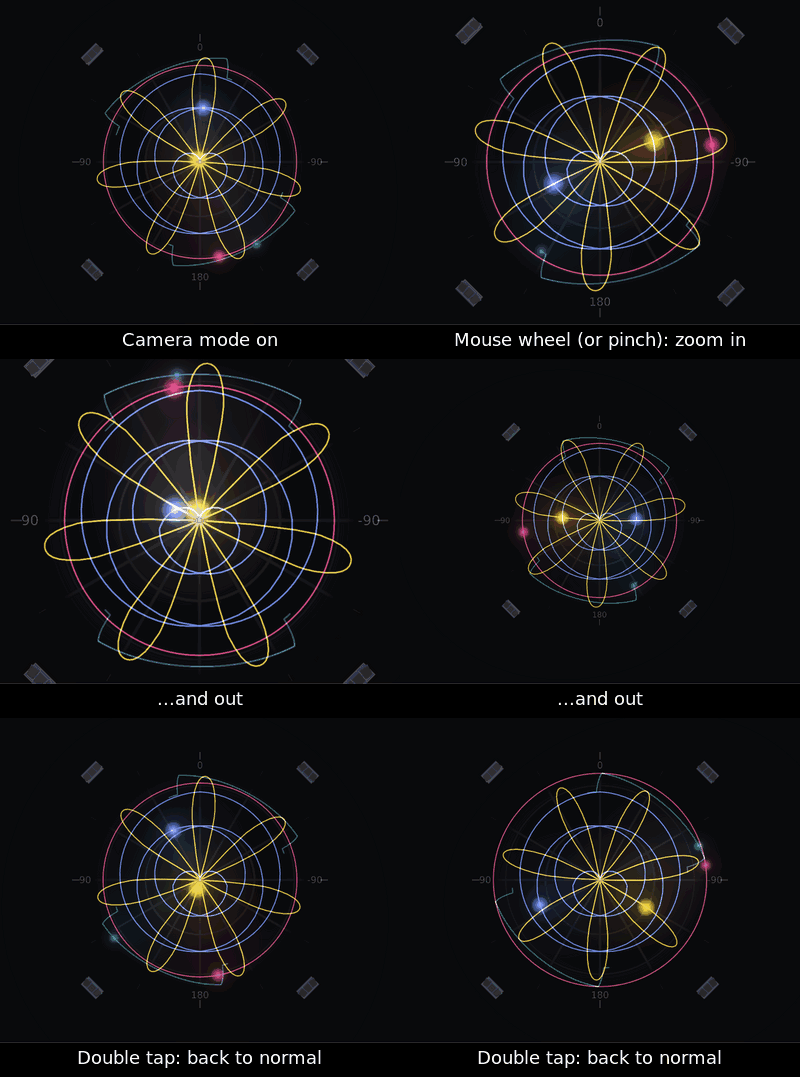
Look without moving anything (camera mode):
Tap the small sphere in the global strip.
Drag up/down to lean the view, sideways to walk round.
Double tap: straight above. Tap the small sphere again to leave.
Change the shape, the speed and the direction
On CLIP, for the selected channel:
To |
Do |
|---|---|
change the shape, keep the values |
drag SVG |
change shape and values |
drag CLIP |
faster / slower |
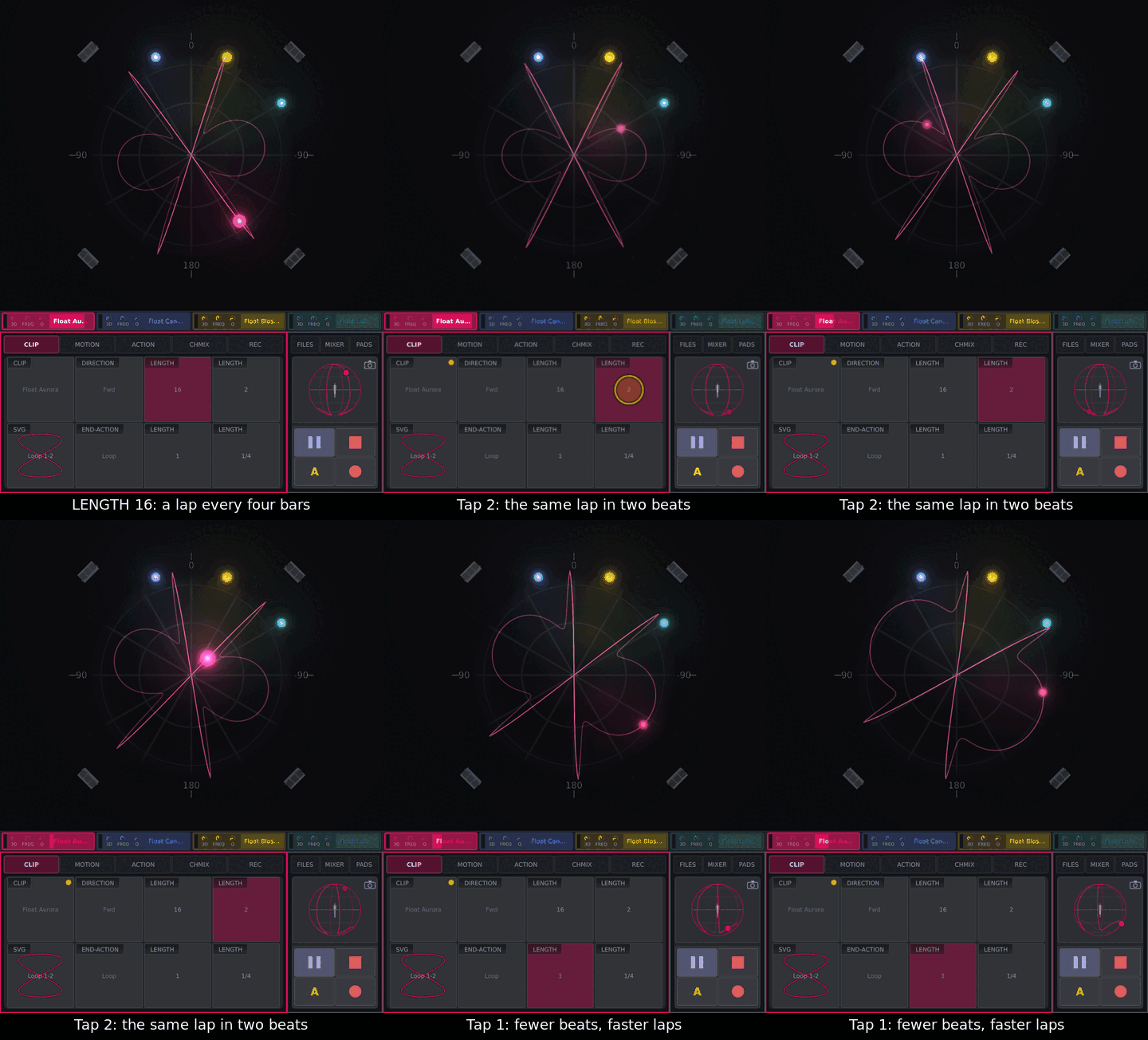
tap a LENGTH key (beats per pass); drag a key to change its length |
direction |
tap DIRECTION: forwards, backwards, there and back, random start |
end of a pass |
tap END-ACTION: Loop, Stop, Paus |
CLIP and SVG are separate so browsing shapes never loads a preset mid-set.
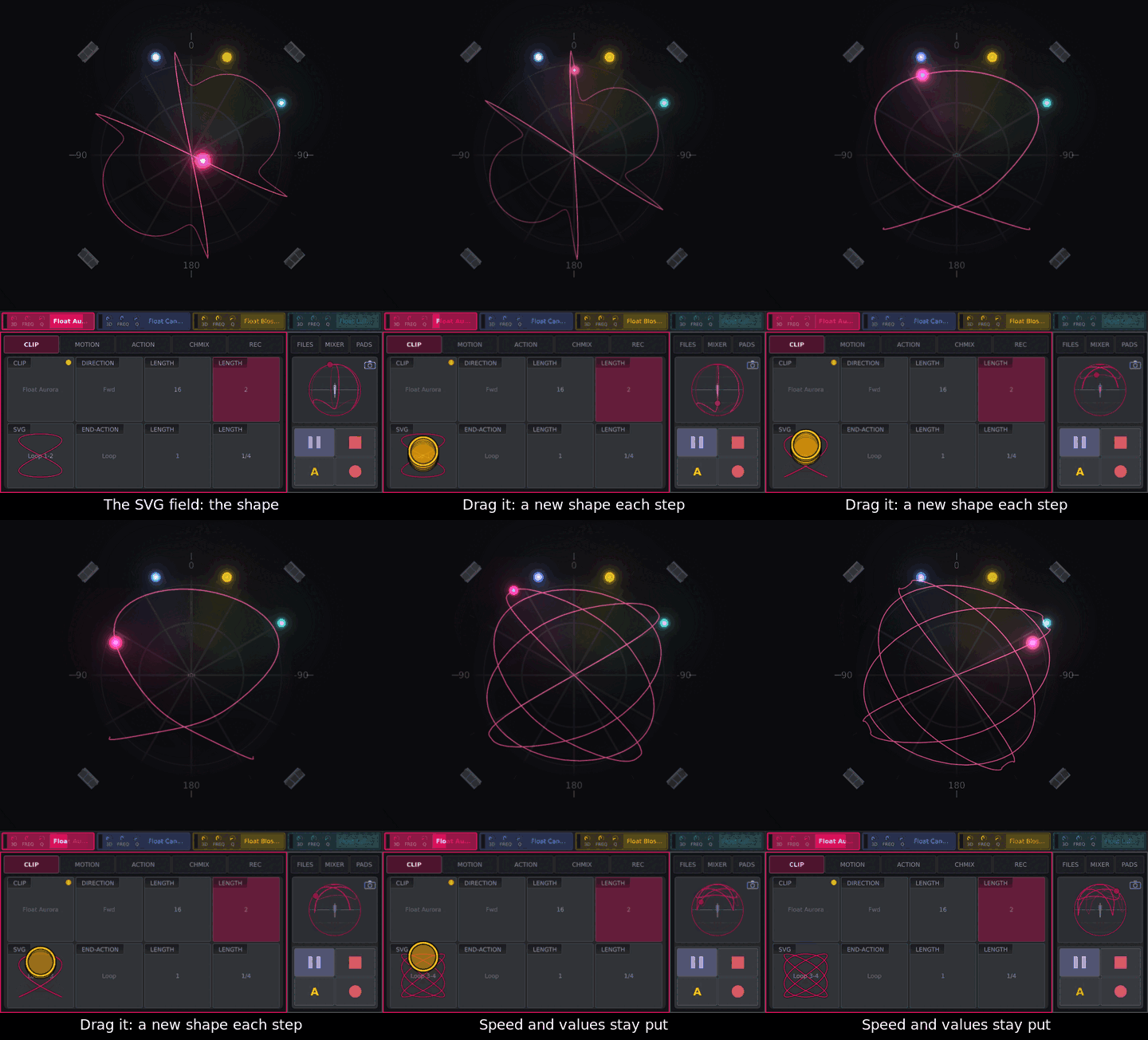
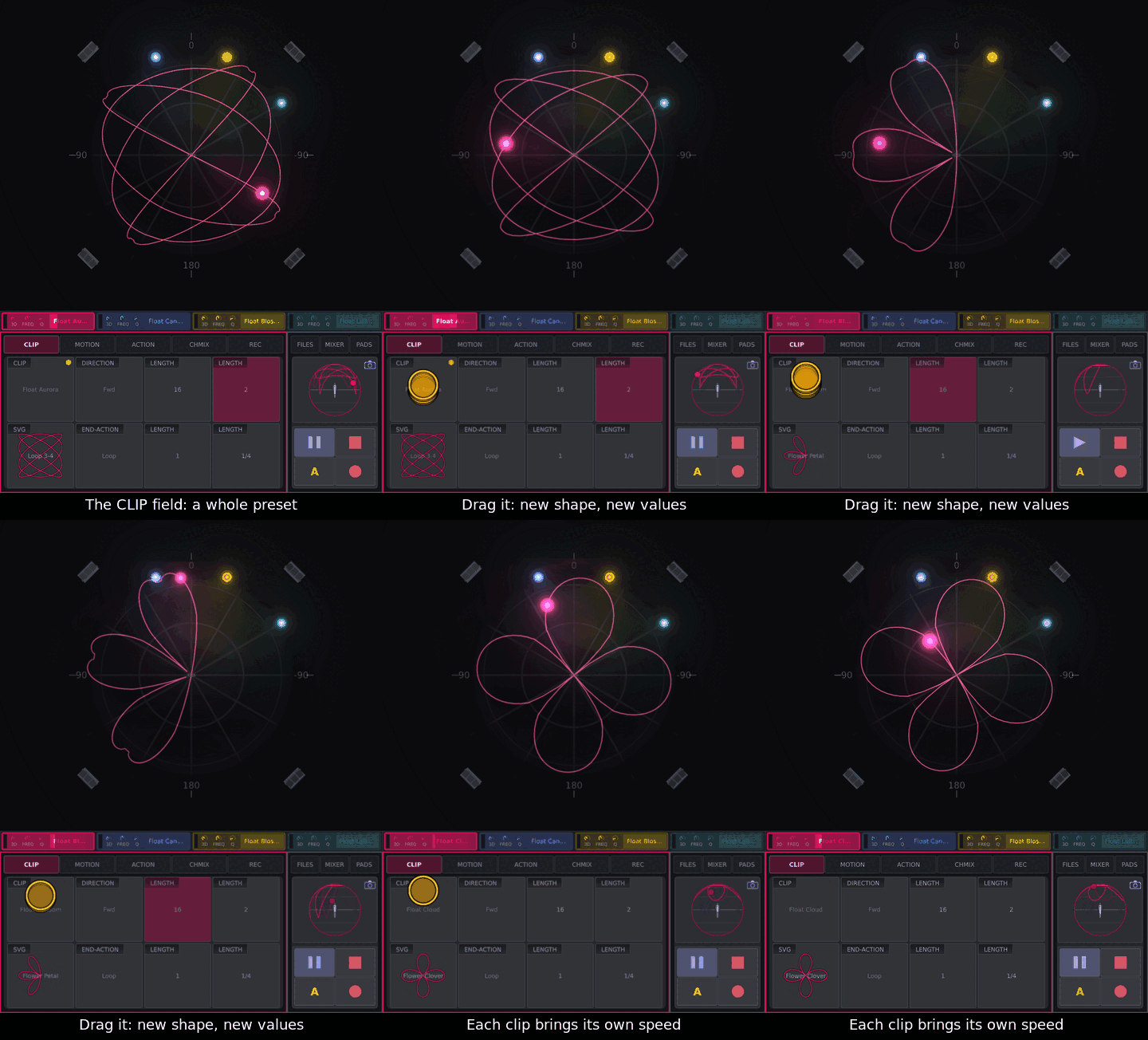
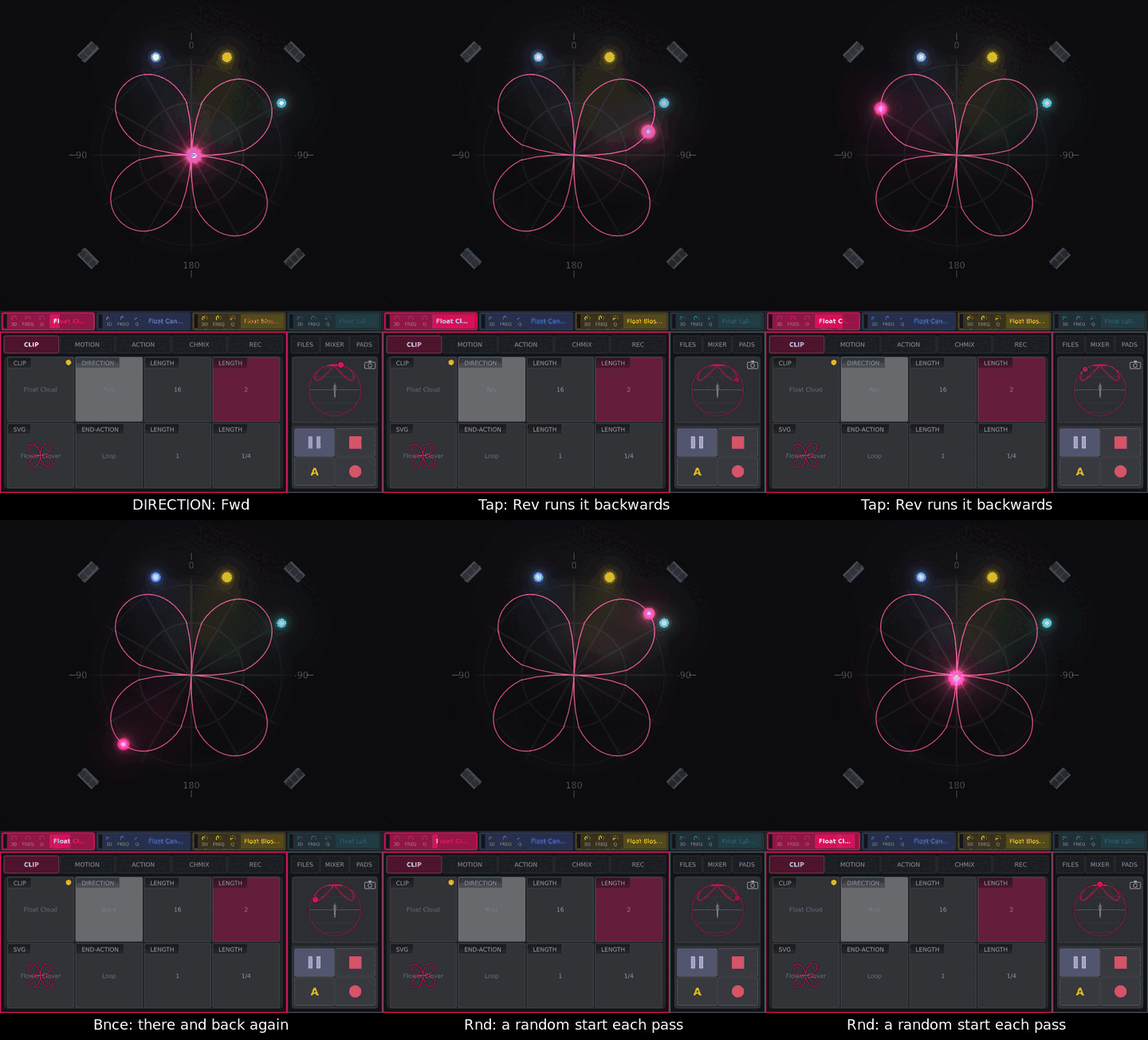
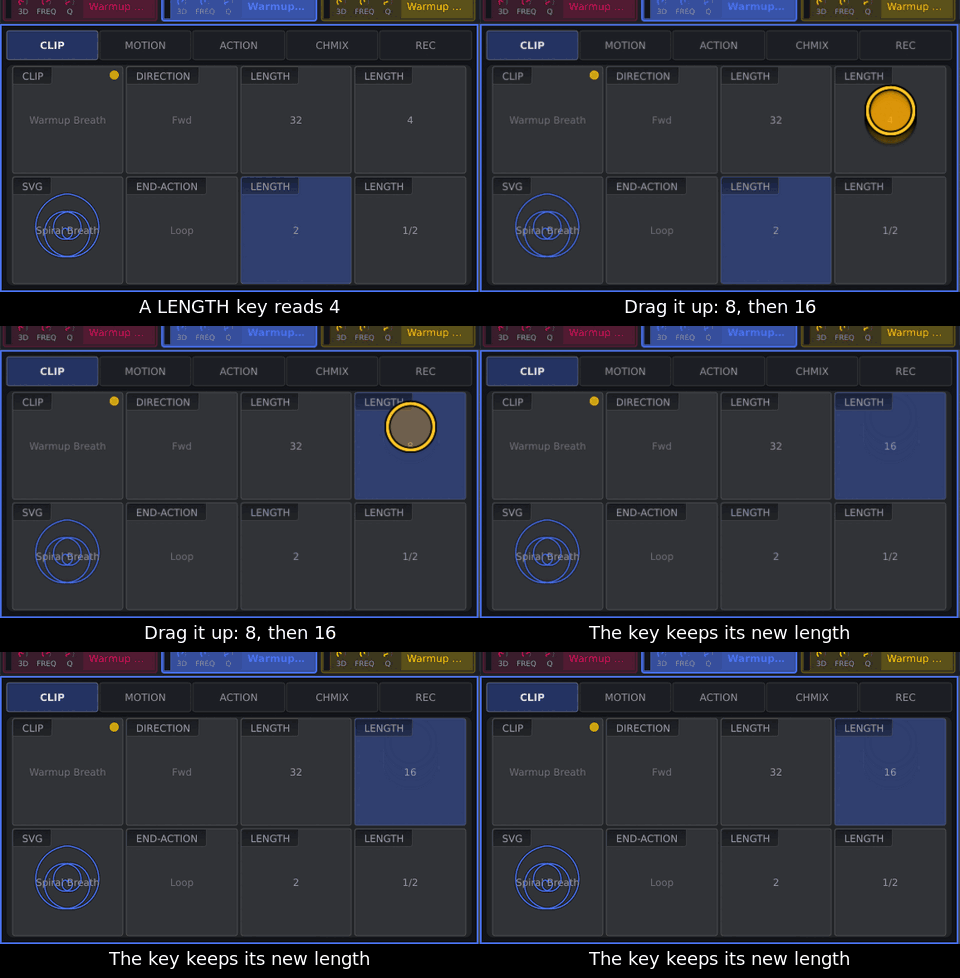
Shape the movement
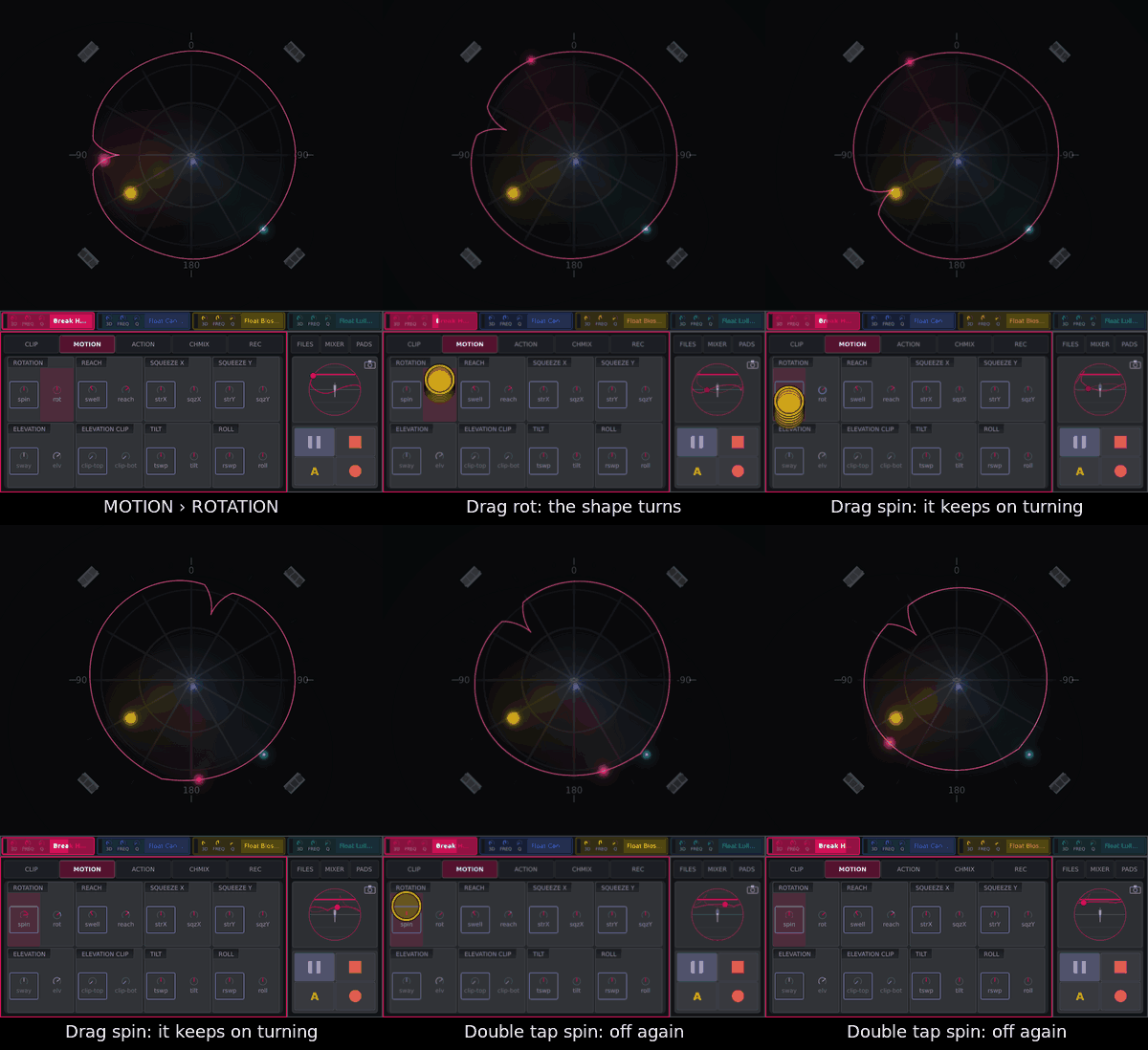
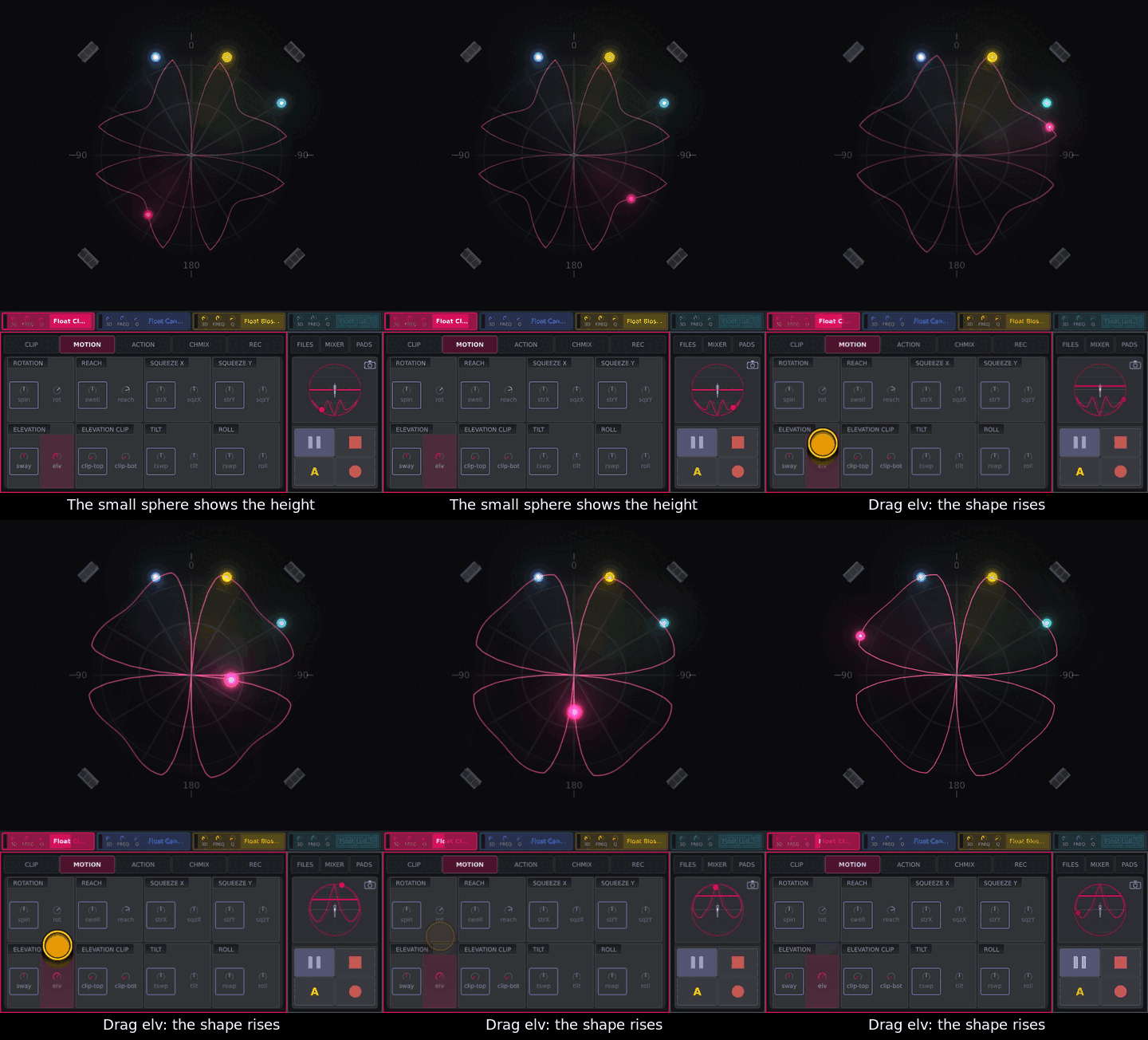
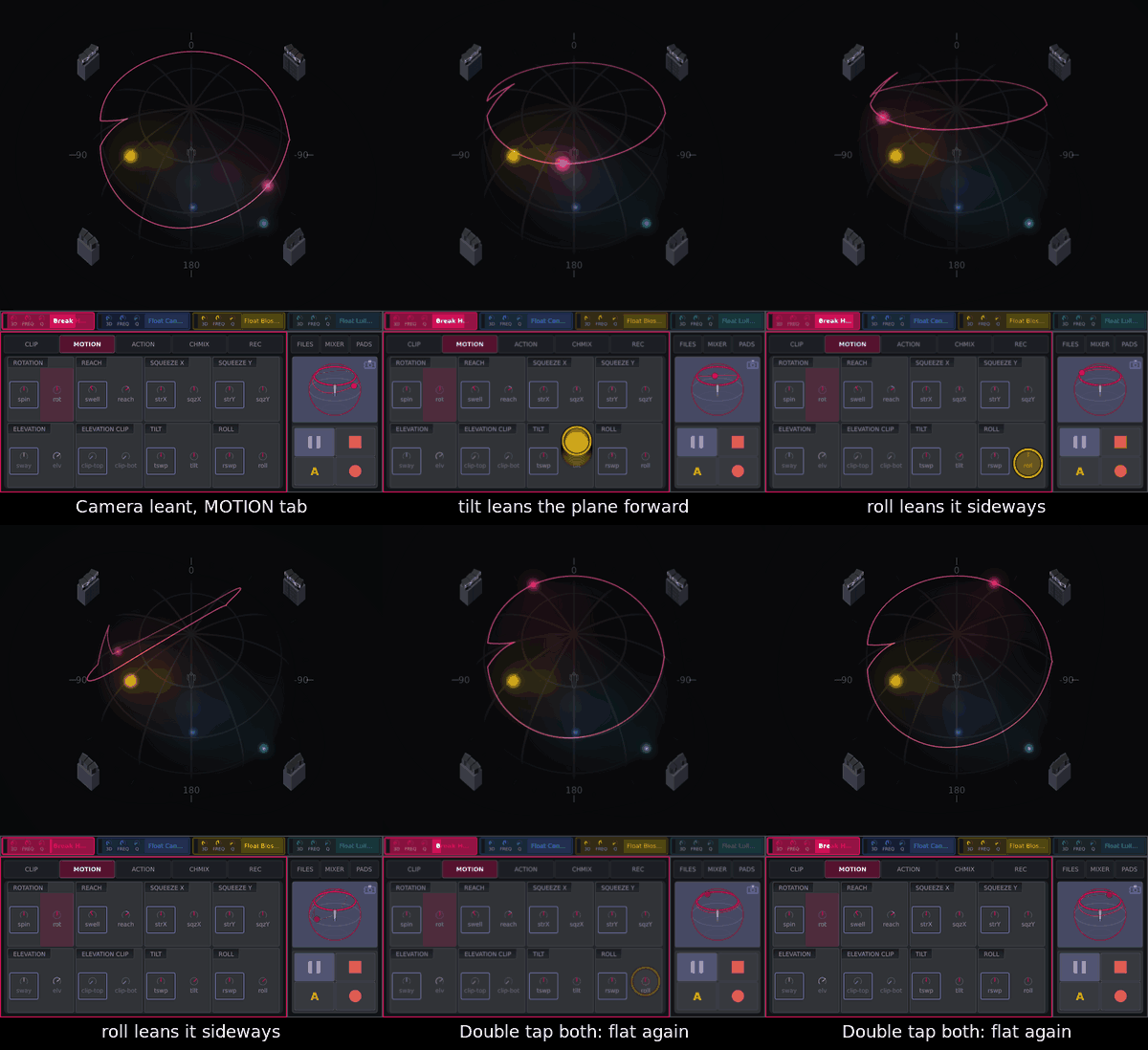
On MOTION each field has two knobs: right sets, left moves it in bars.
To |
Knob |
|---|---|
point / keep turning |
|
wider / breathing |
|
higher / rising and falling |
|
ceiling and floor |
|
squash front–back / side–side |
|
lean forward / sideways |
|
back to rest |
double tap |
Fire and assign actions
To |
Do |
|---|---|
fire |
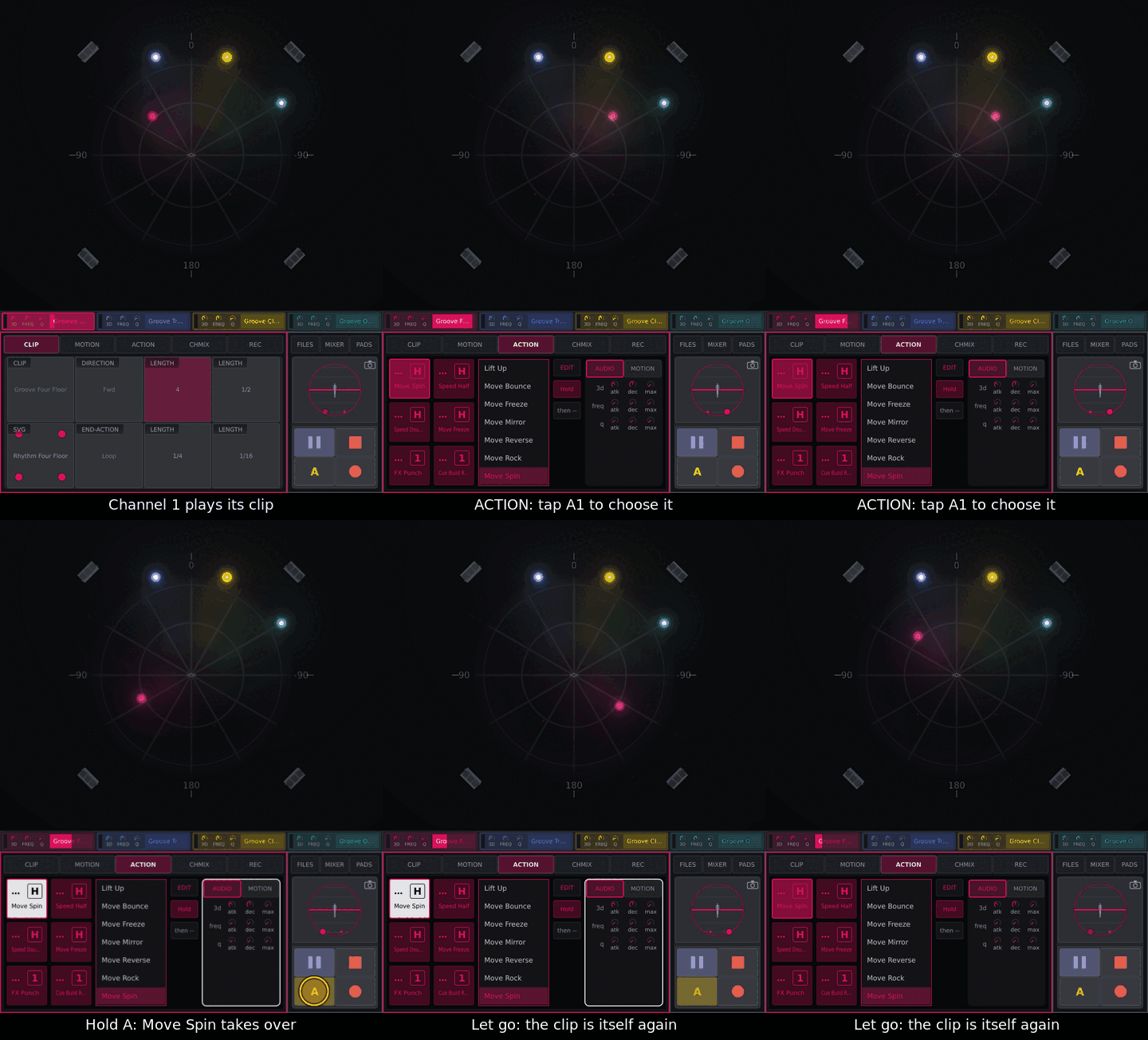
hold an action pad A1–A6 (panel or PADS): now; ACTION opens on that button |
fire from the screen |
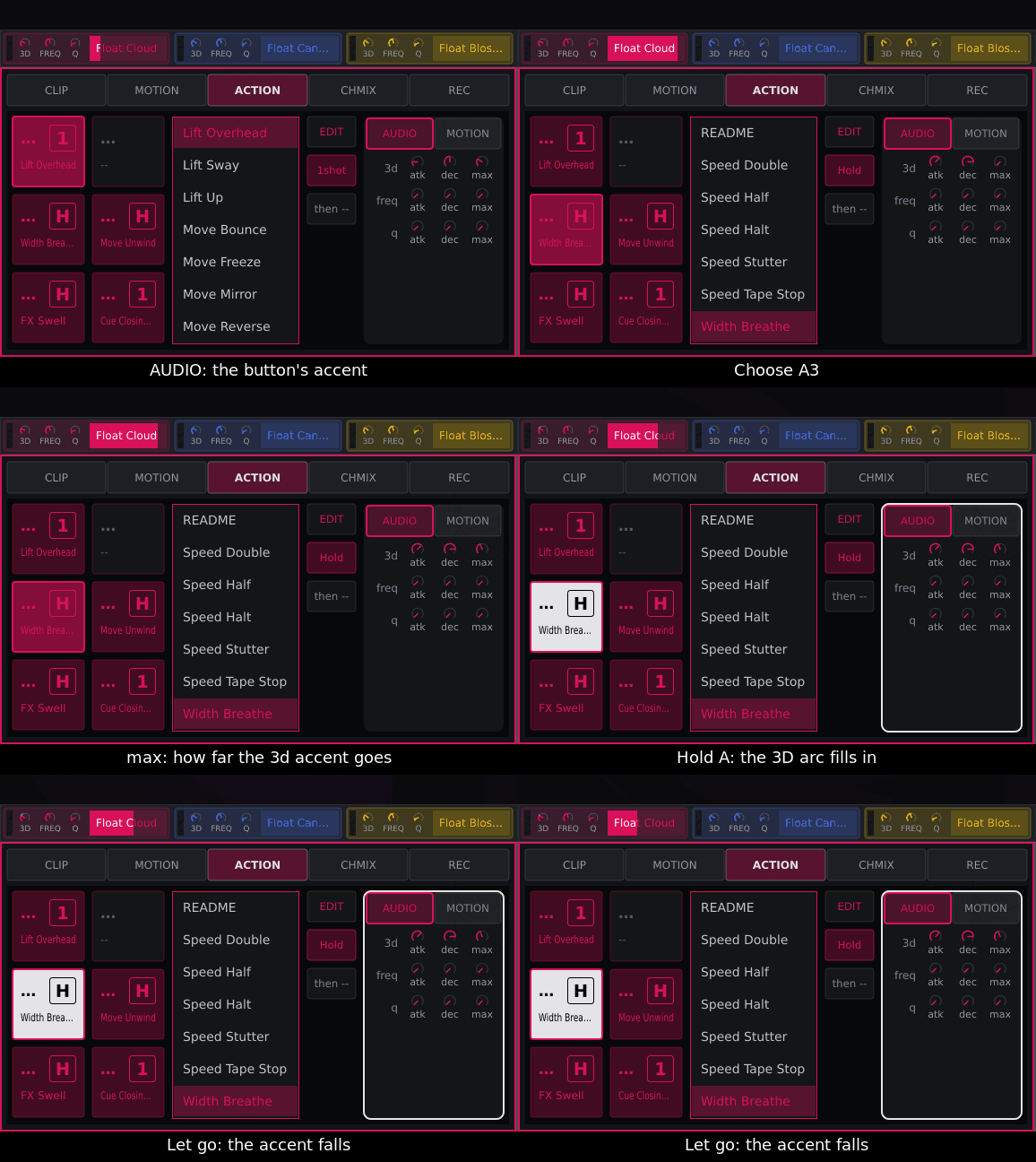
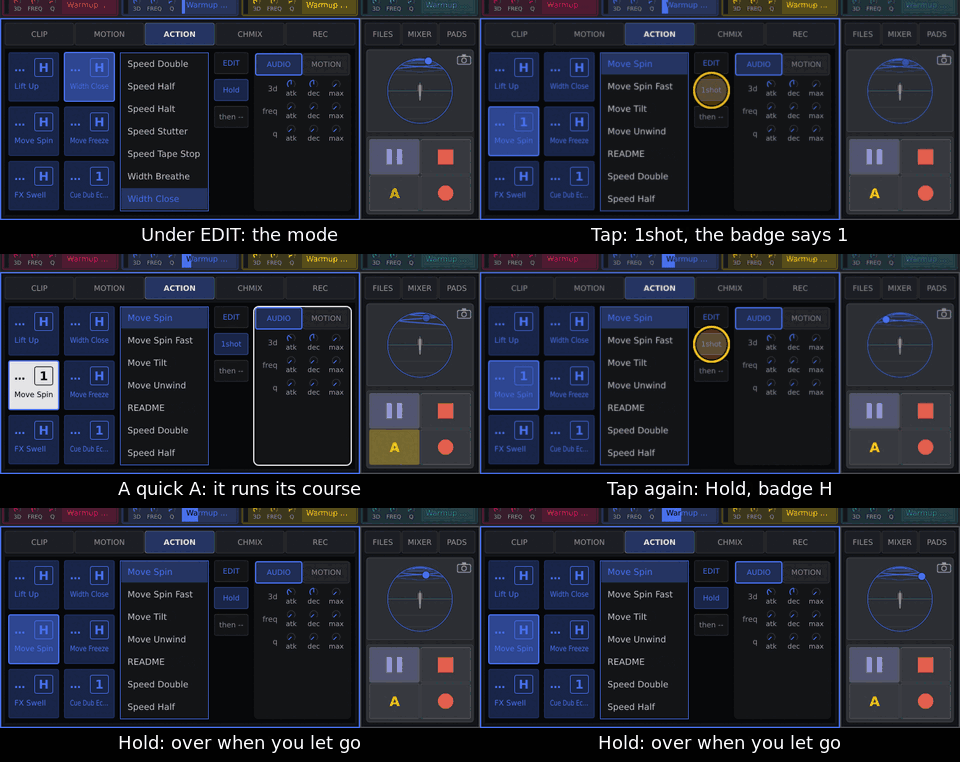
ACTION: tap a button (chooses, doesn’t fire), hold A |
audition privately |
SHIFT + action pad: screen only, while held |
assign |
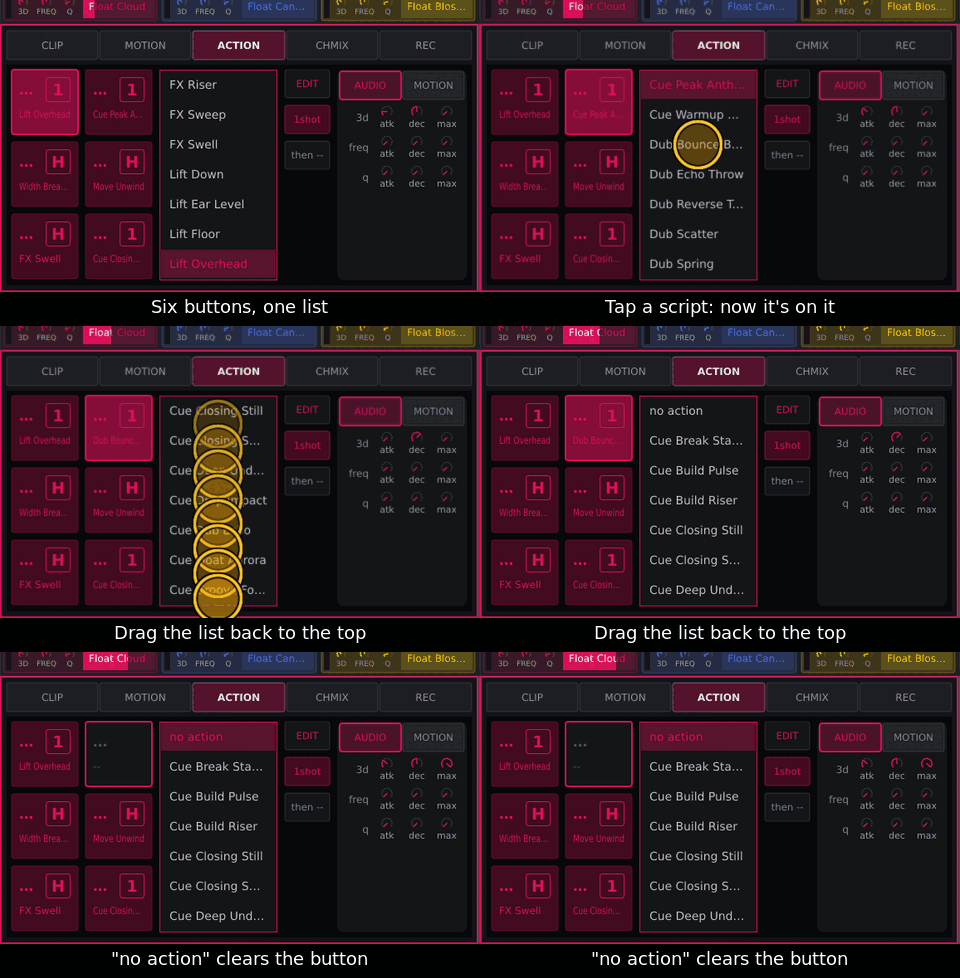
ACTION: tap the button, tap a script; no action empties it |
Note
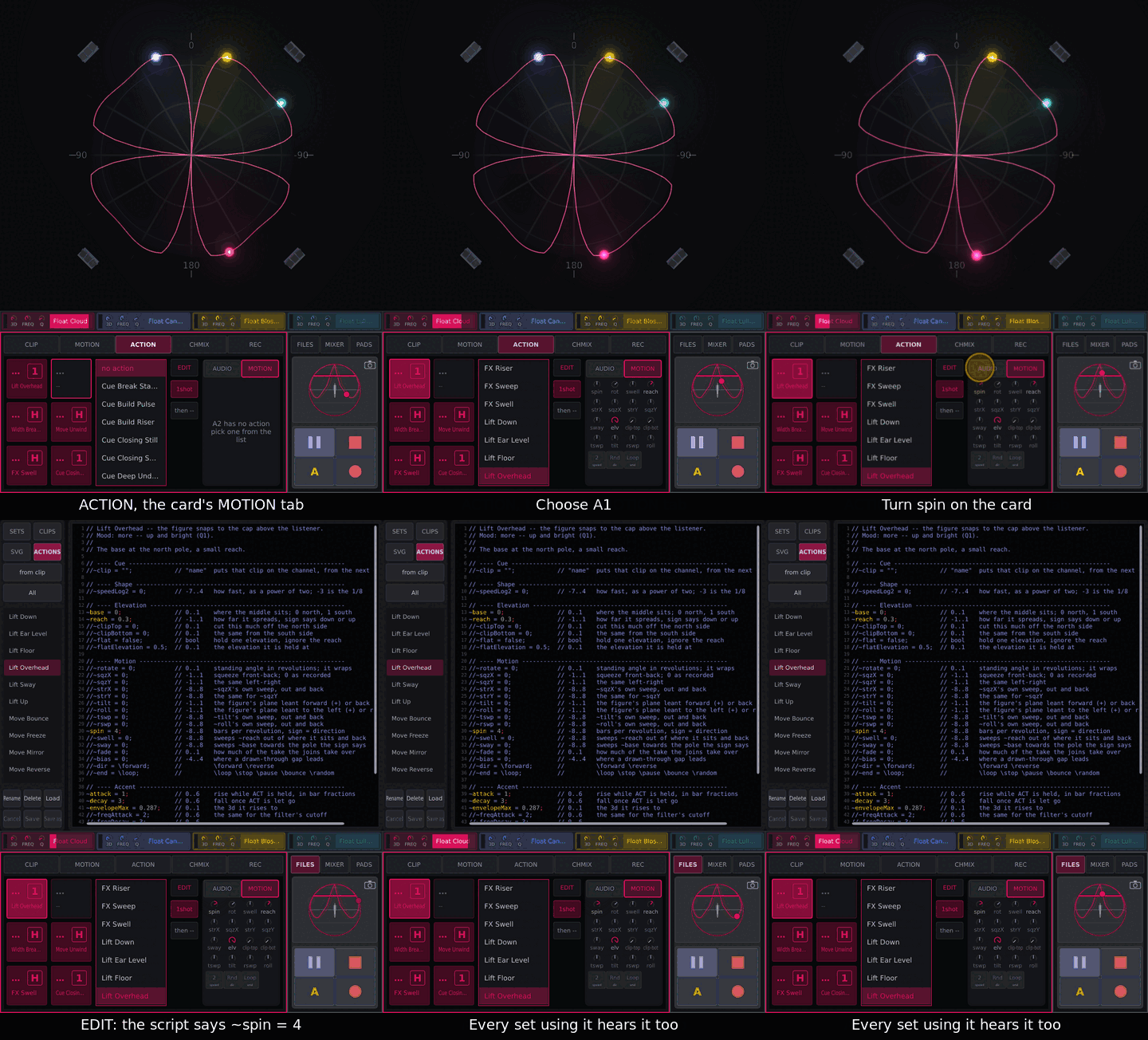
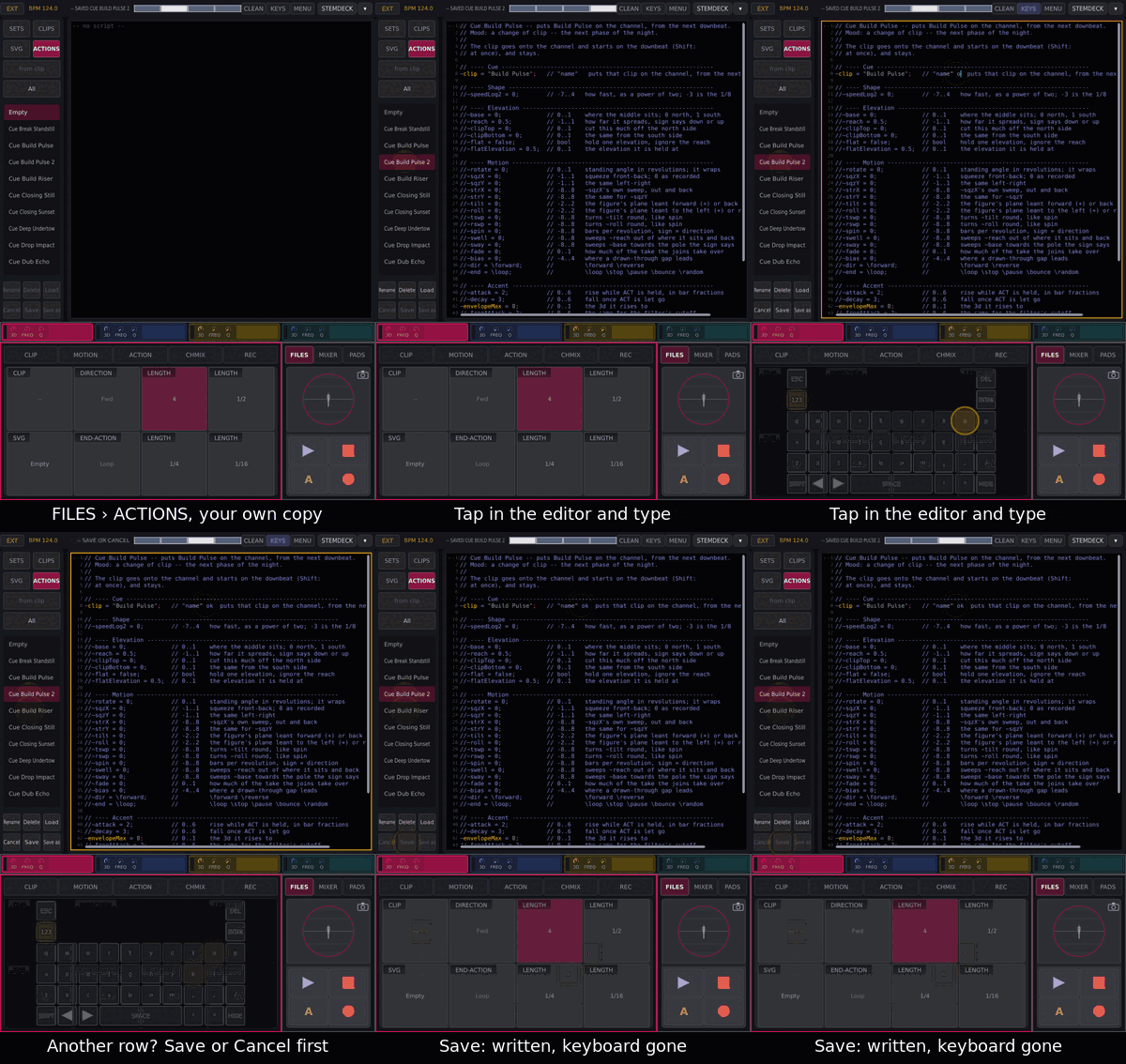
Turning a value on ACTION changes your own action everywhere it is used. A shipped action is never changed: the first turn makes a copy of your own (“Bloom 2”), and every button that had the shipped one gets the copy. Save the set to keep it. With Developer Mode on, shipped actions are changed in place, as Save in FILES does.
Record a take, and keep it or throw it away
Select the channel.
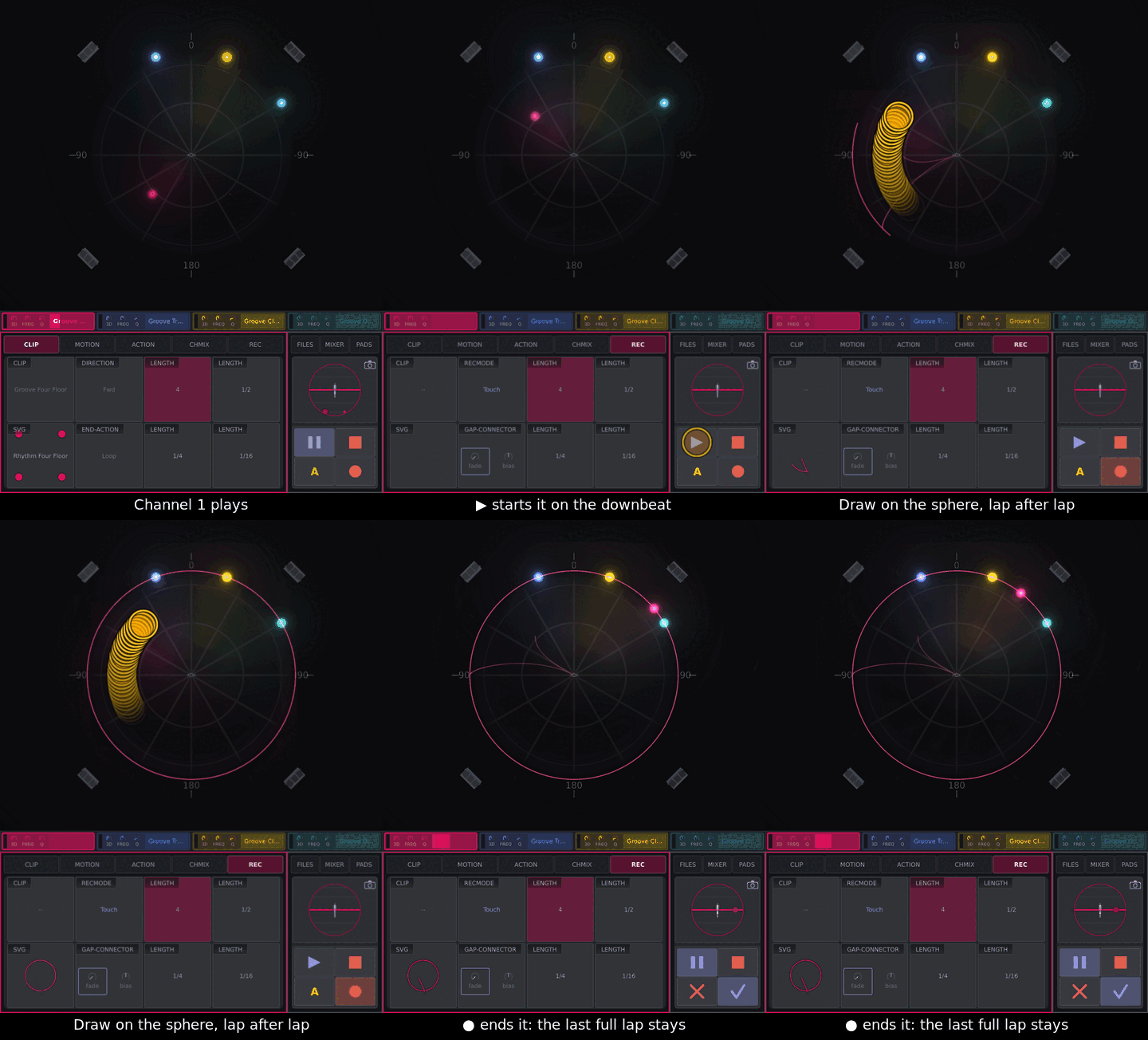
Tap ●: armed (REC opens, ● and ▶ lit, the clip plays on). ■ or ● disarms.
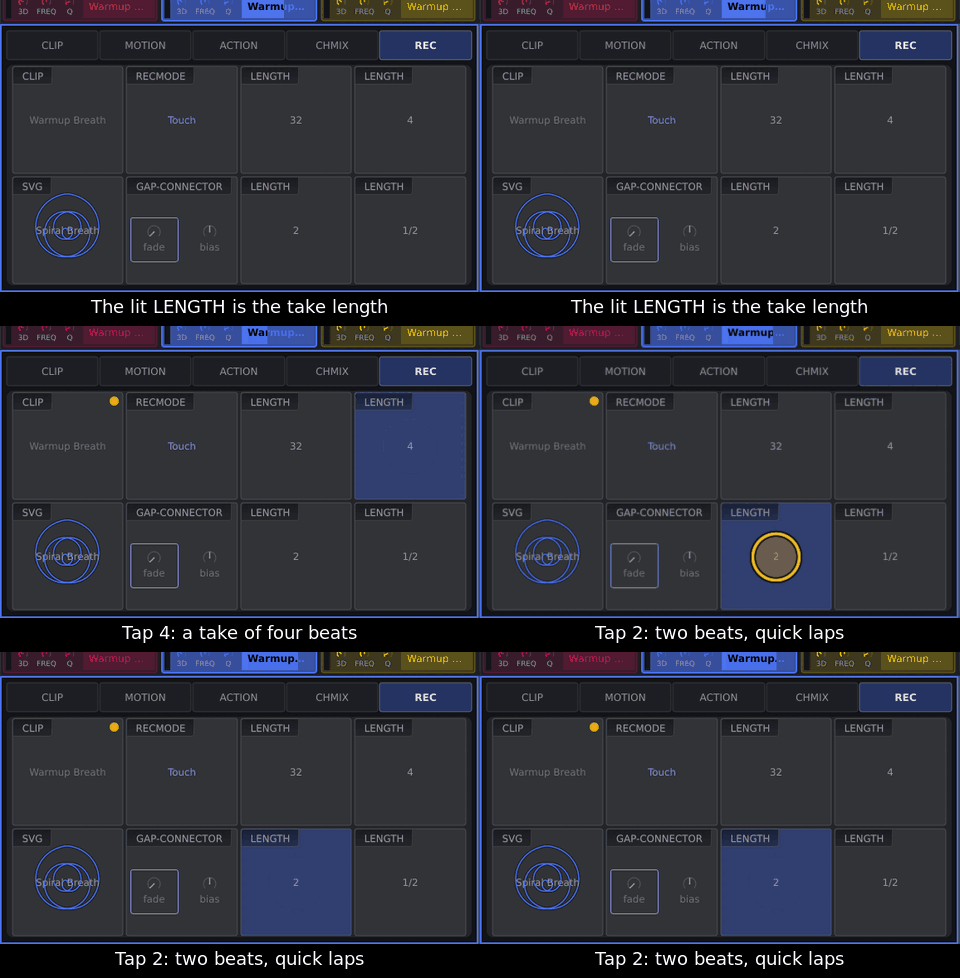
On REC: the lit LENGTH is the take’s length; rec mode Touch to draw.
Tap ▶: the take starts on the next downbeat.
Drag on the sphere; the first finger writes. MOTION knobs record too (below).
● or ■ ends it. A take is the last full pass.
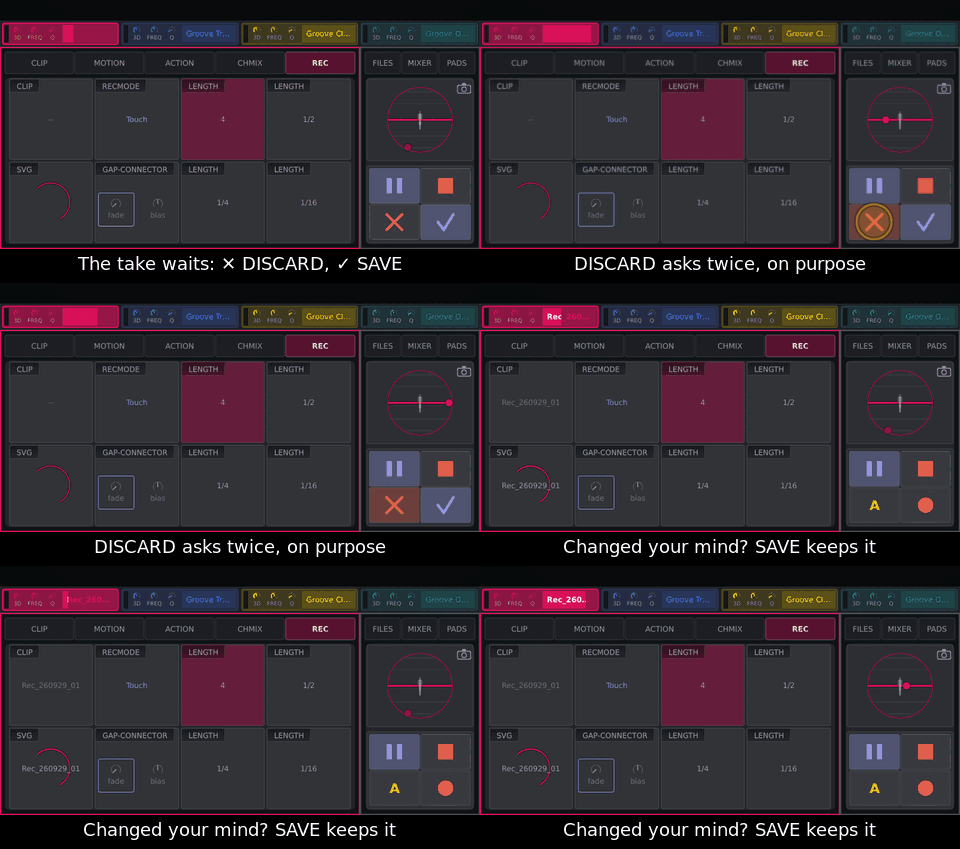
SAVE (where ● was) keeps shape and clip. DISCARD (where A was) asks twice and restores the channel, stopped.
The room hears the take; to practise, turn 3d down. An undecided take keeps playing, unsaved, until SAVE, DISCARD, a new take, a load or a restart. Panel: hold REC + Play|Pause (no arming); REC again ends.
Record knob moves
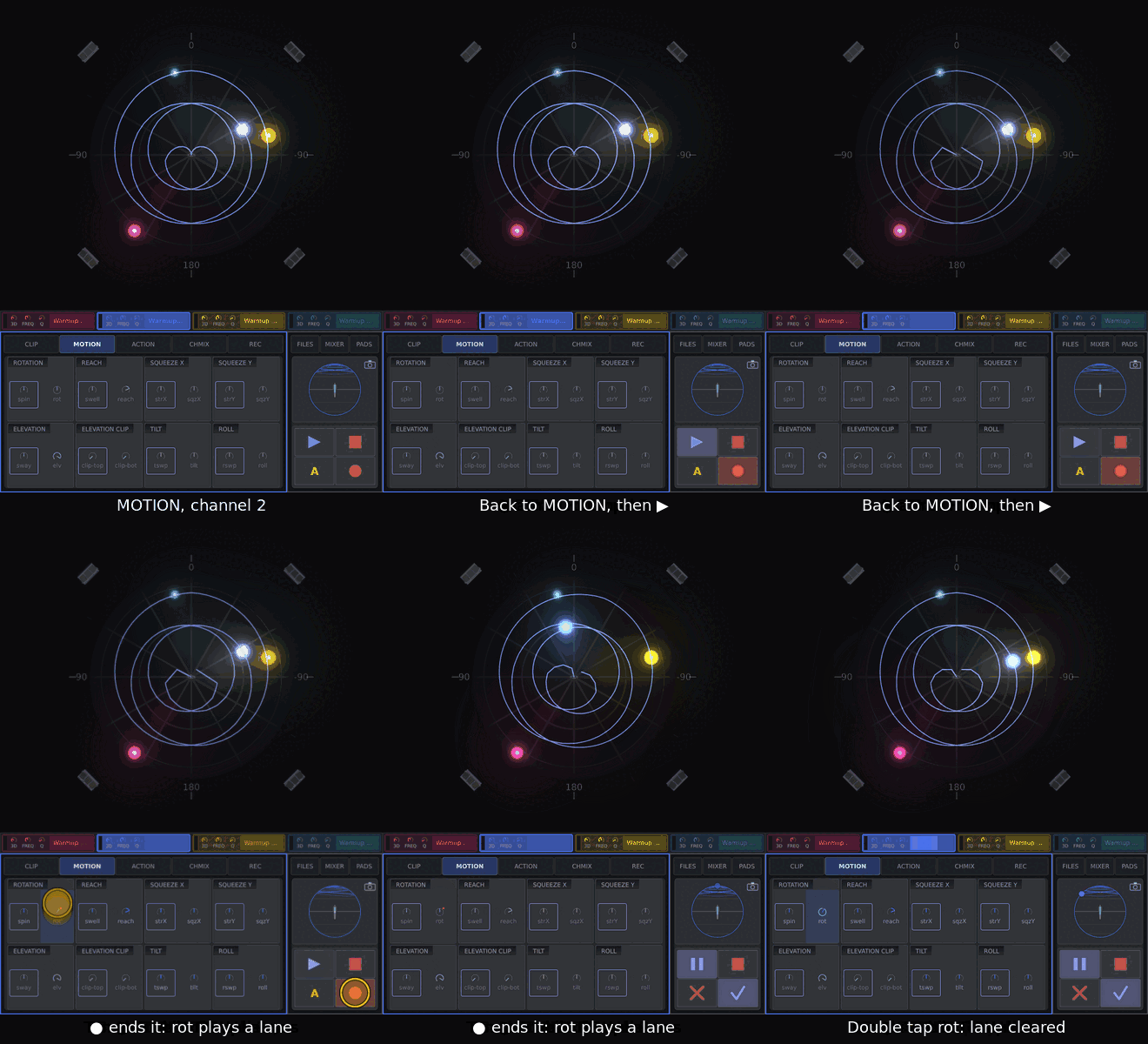
After ●, tap MOTION again, then ▶ (on REC that spot is CLIP). Knobs turned during the take become lanes (red while writing, same rec mode). On playback the lane turns the knob; your hand wins while it holds. Double tap a knob to clear its lane.
Keep a tweak and save your set
To |
Do |
|---|---|
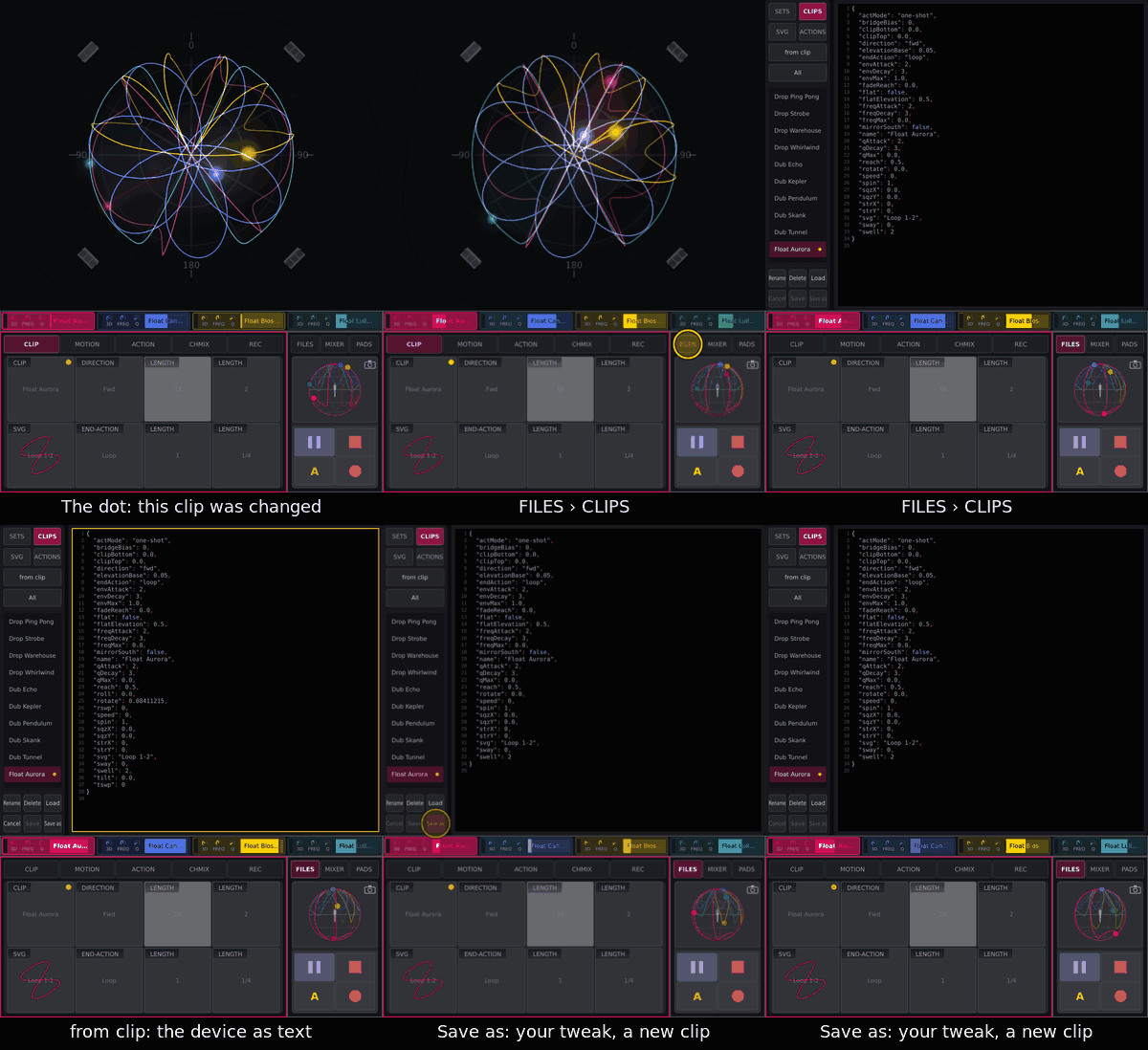
keep a changed clip (drift dot on CLIP) |
FILES › CLIPS › from clip › Save as (“Warmup Halo 2”); the channel keeps the original until you Load the copy |
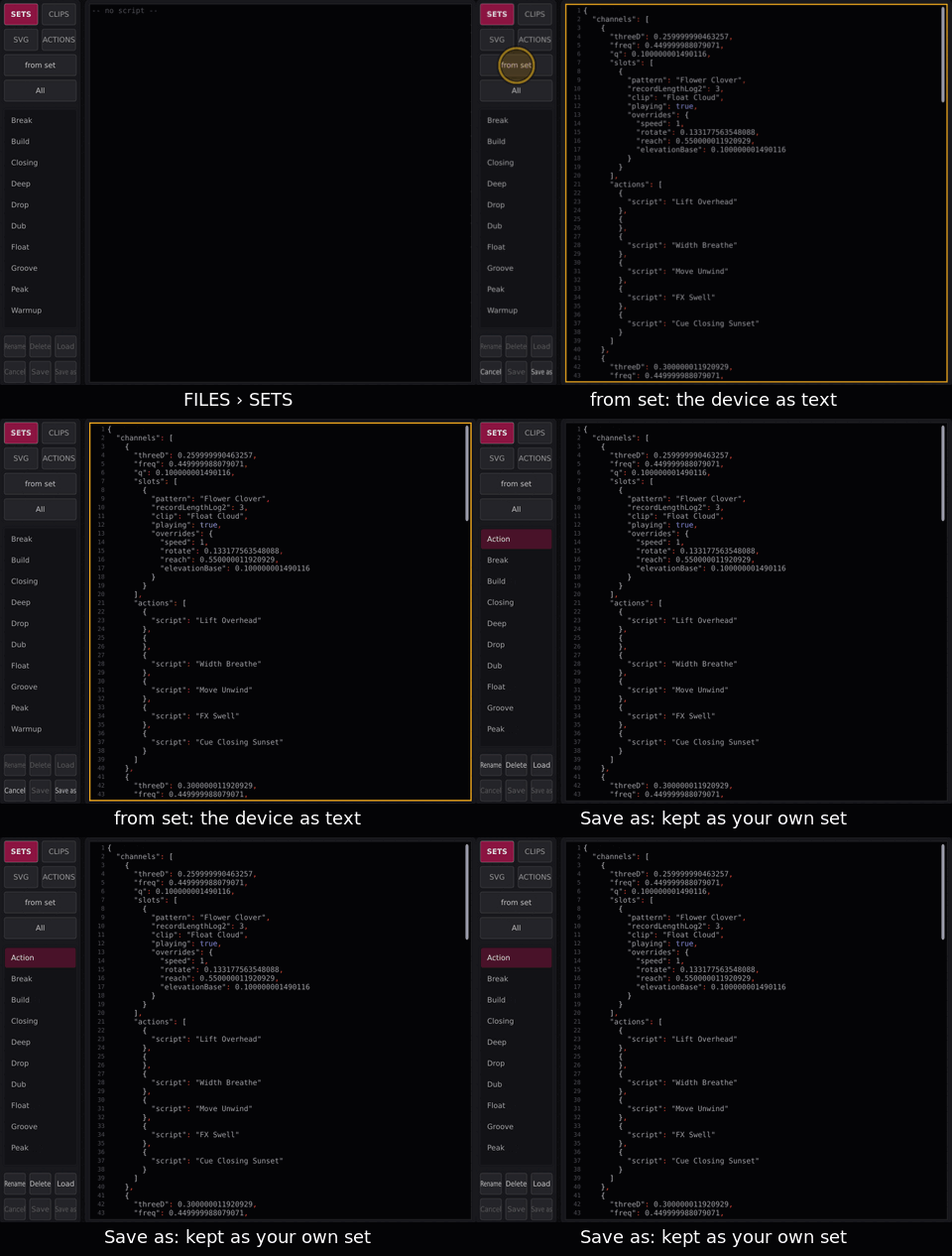
keep tonight’s set |
FILES › SETS › from set › Save as (named after the loaded set: “Tribal 2”, then “Tribal 3”); rename it |
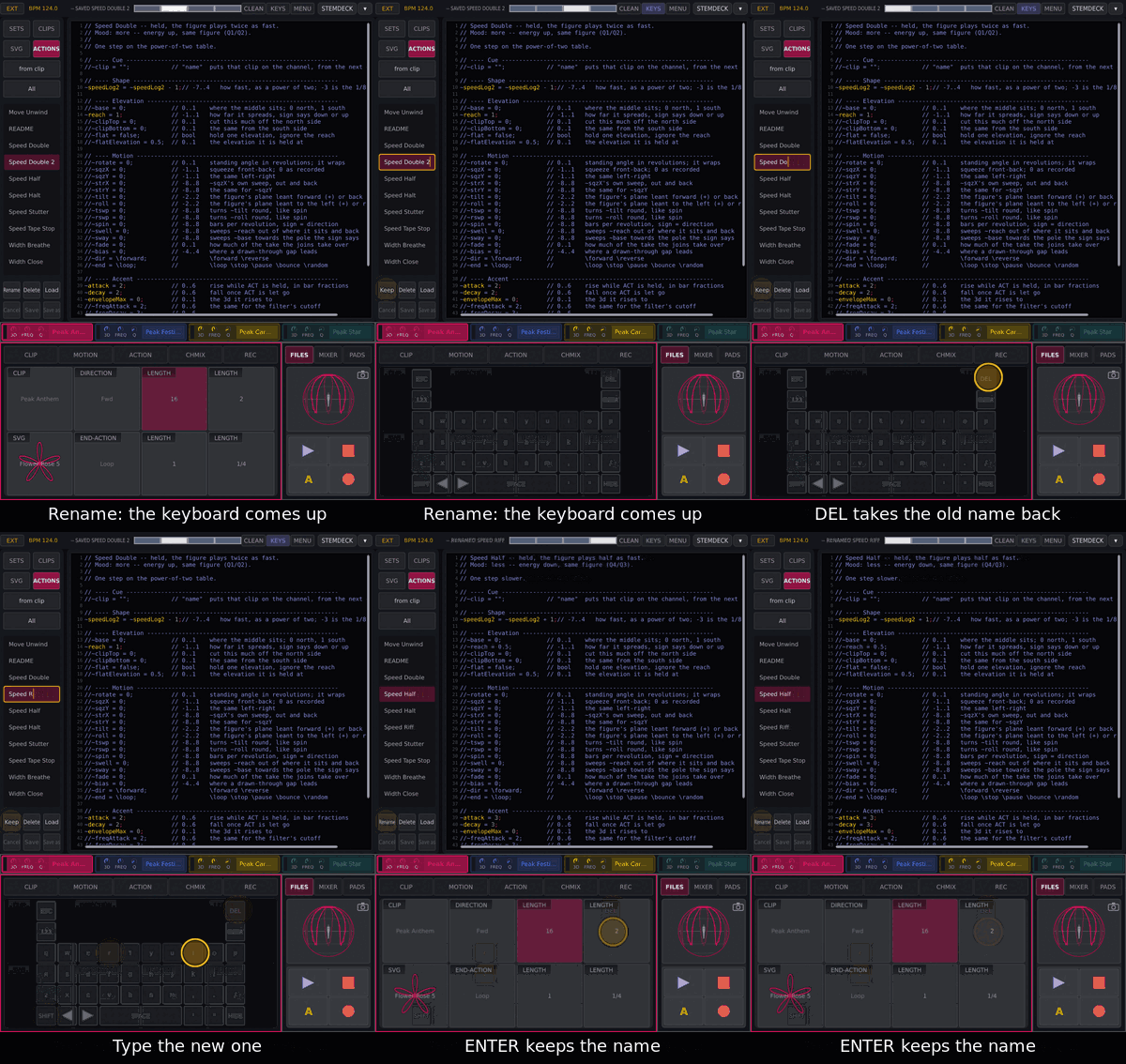
rename |
row › Rename, type, Keep or ENTER |
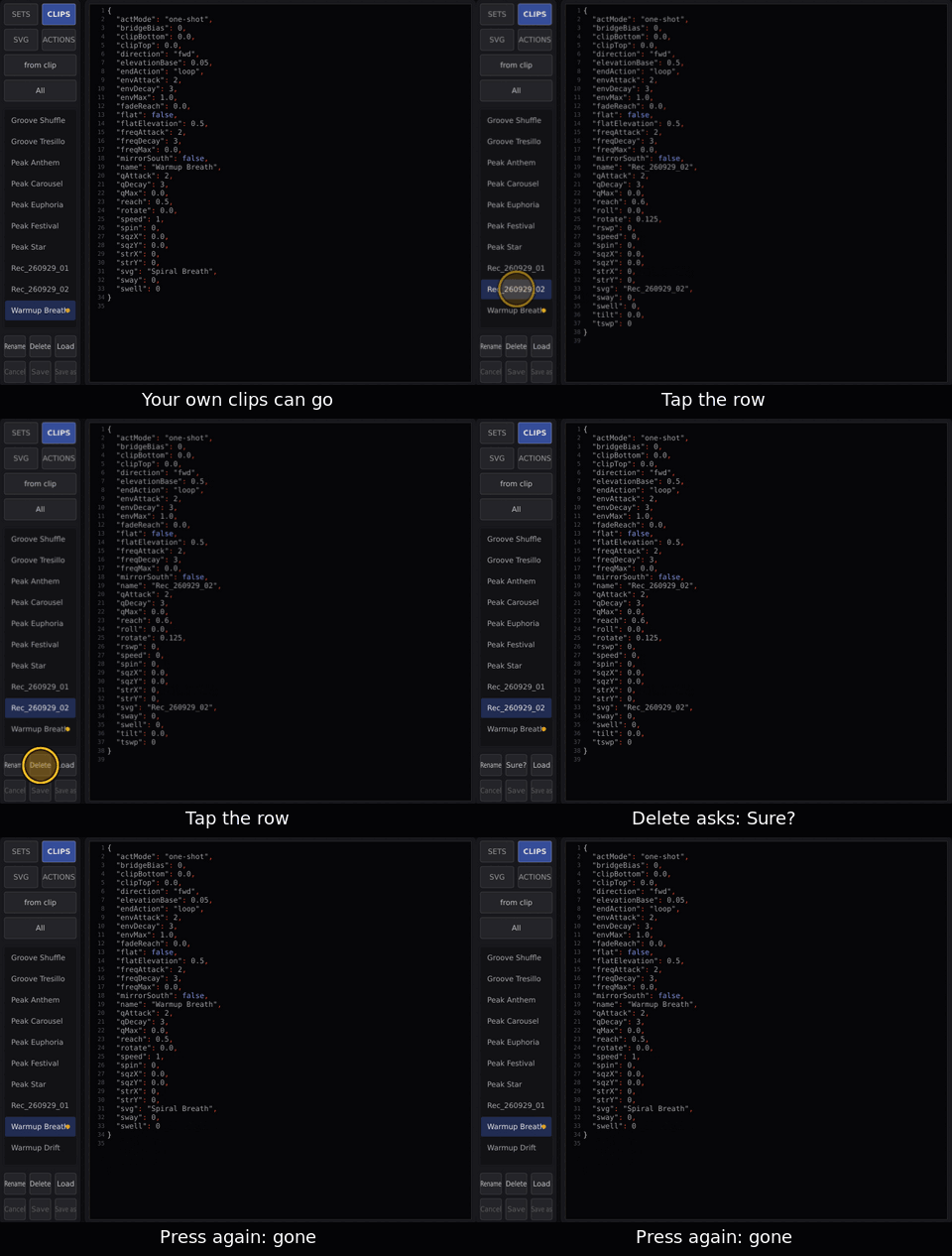
delete |
row › Delete › Delete again; what is loaded keeps playing |
Mix from the screen
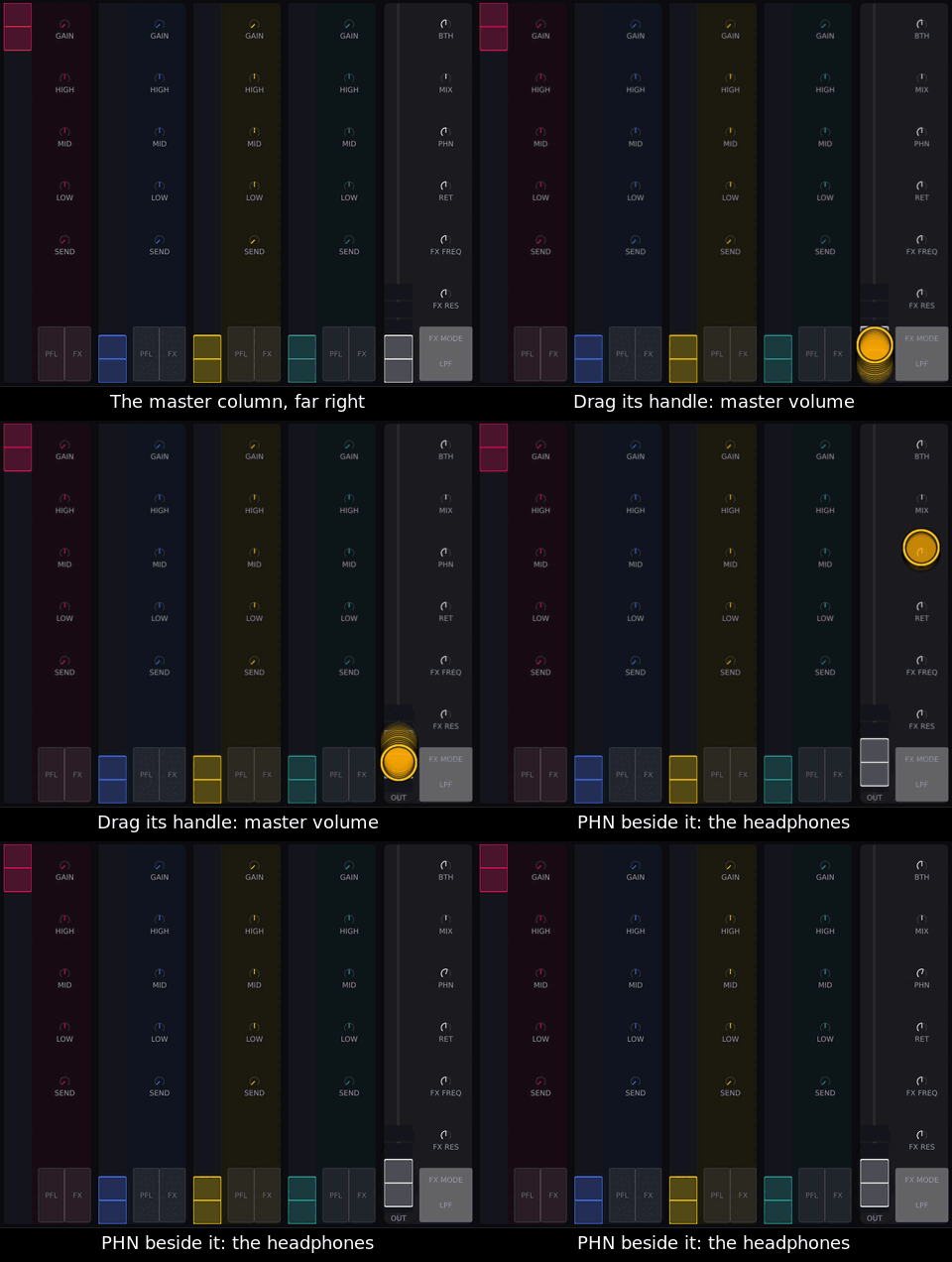
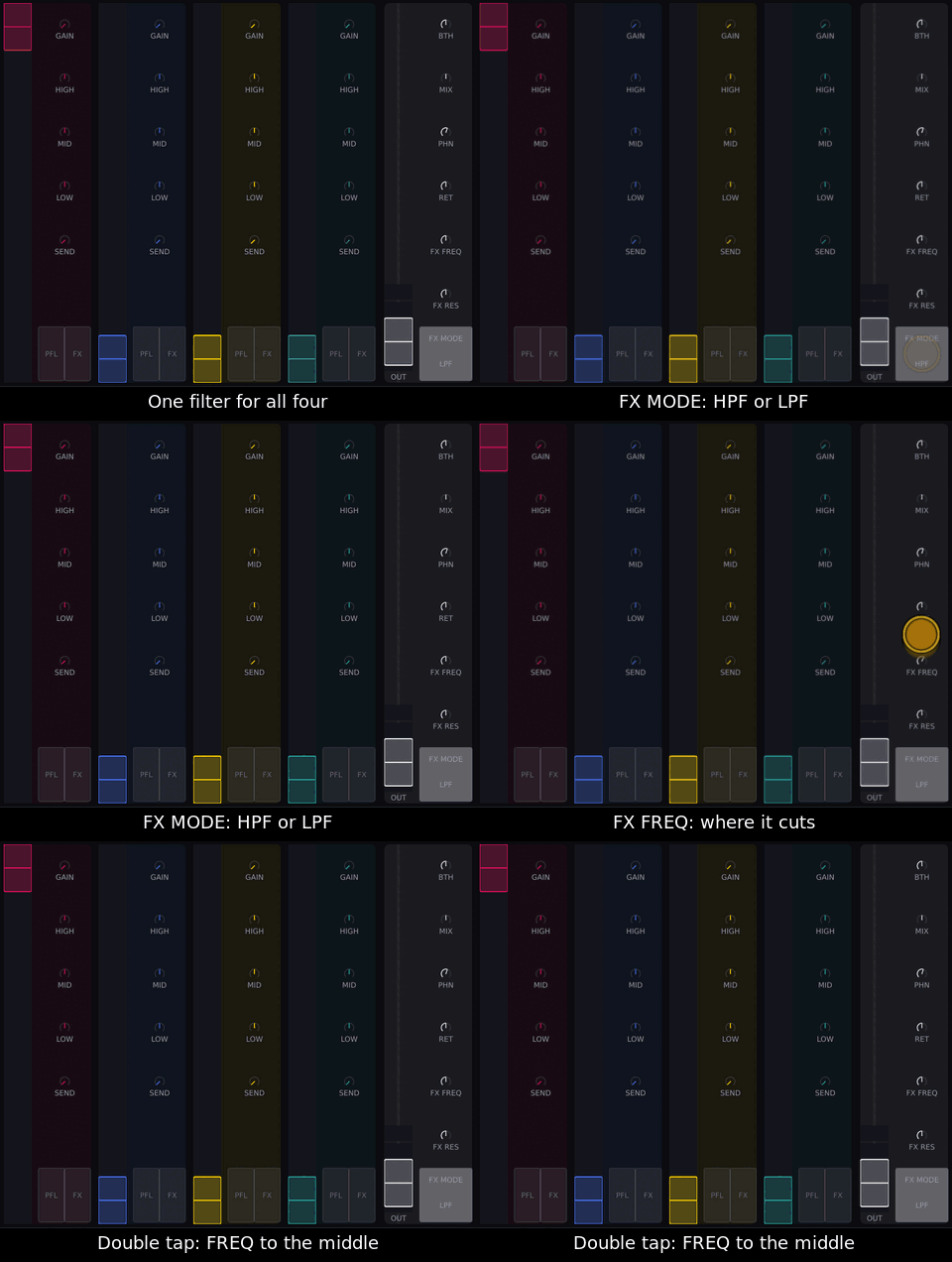
One channel: CHMIX tab. All four and master: MIXER.
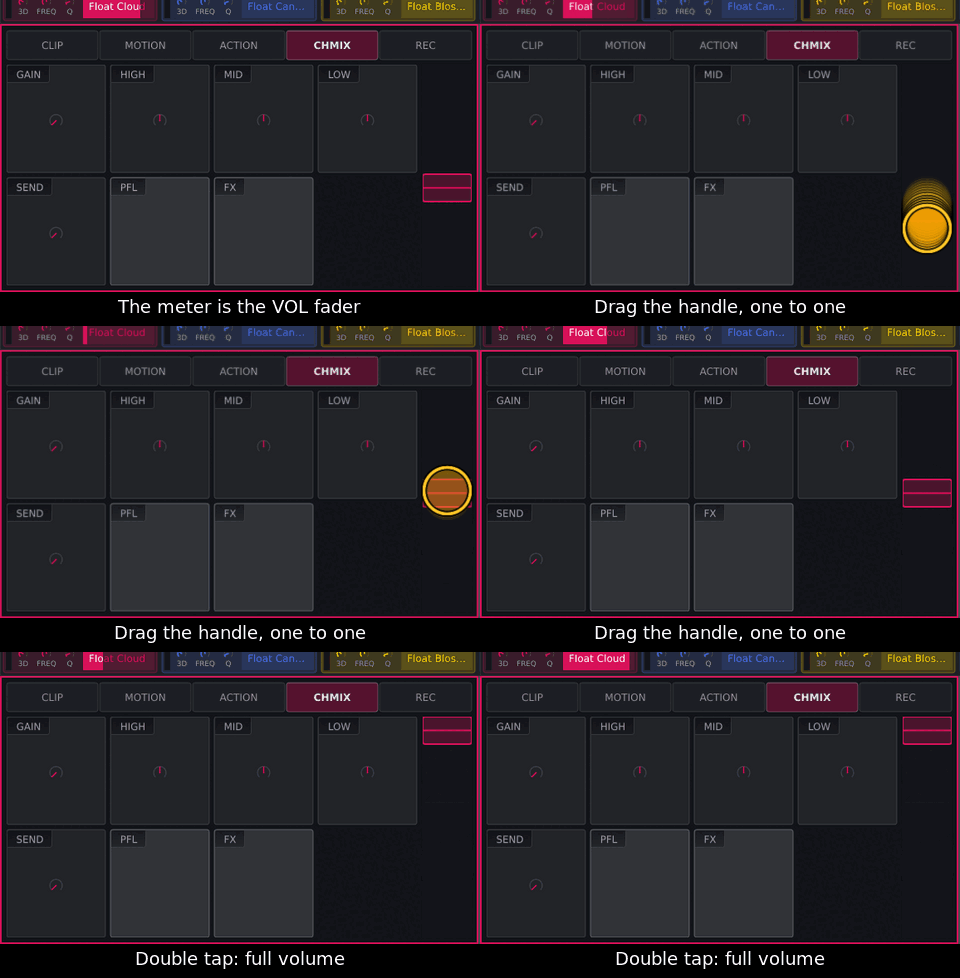
Volume: drag the handle on the meter, one to one; a drag elsewhere does nothing, so a stray finger can’t pull a loud channel down.
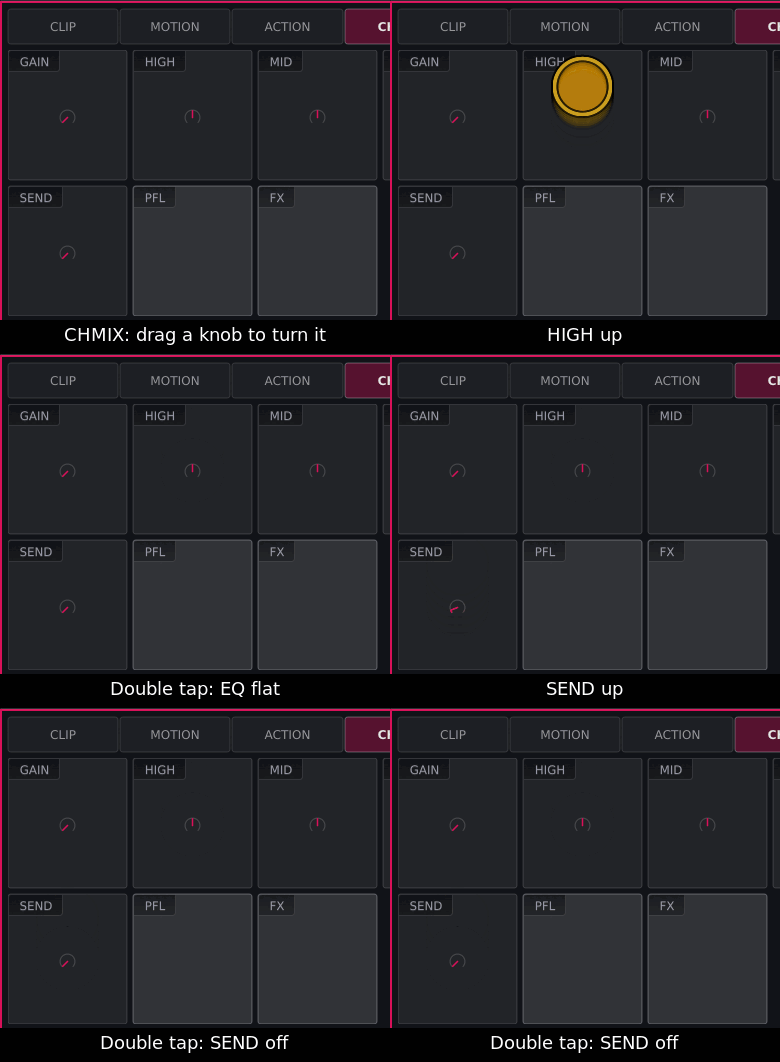
Double tap a knob: EQ flat, SEND off, volume full. Not the master.
The desk follows, but has no motor faders: its next touch jumps to where the hardware control sits.
Set the tempo by hand
Tap the clock key to INT.
Tap the beat display (or TAP) in time; the first tap after a pause is the one.
In EXT and PIO taps go to the beat analyser. Stepping the clock key round loses your taps: back on INT you get the tempo INT had when you first left.

Change the look
CLEAN (status bar): thin lines, no effects, lighter on the machine. The shipped default skin already is clean.
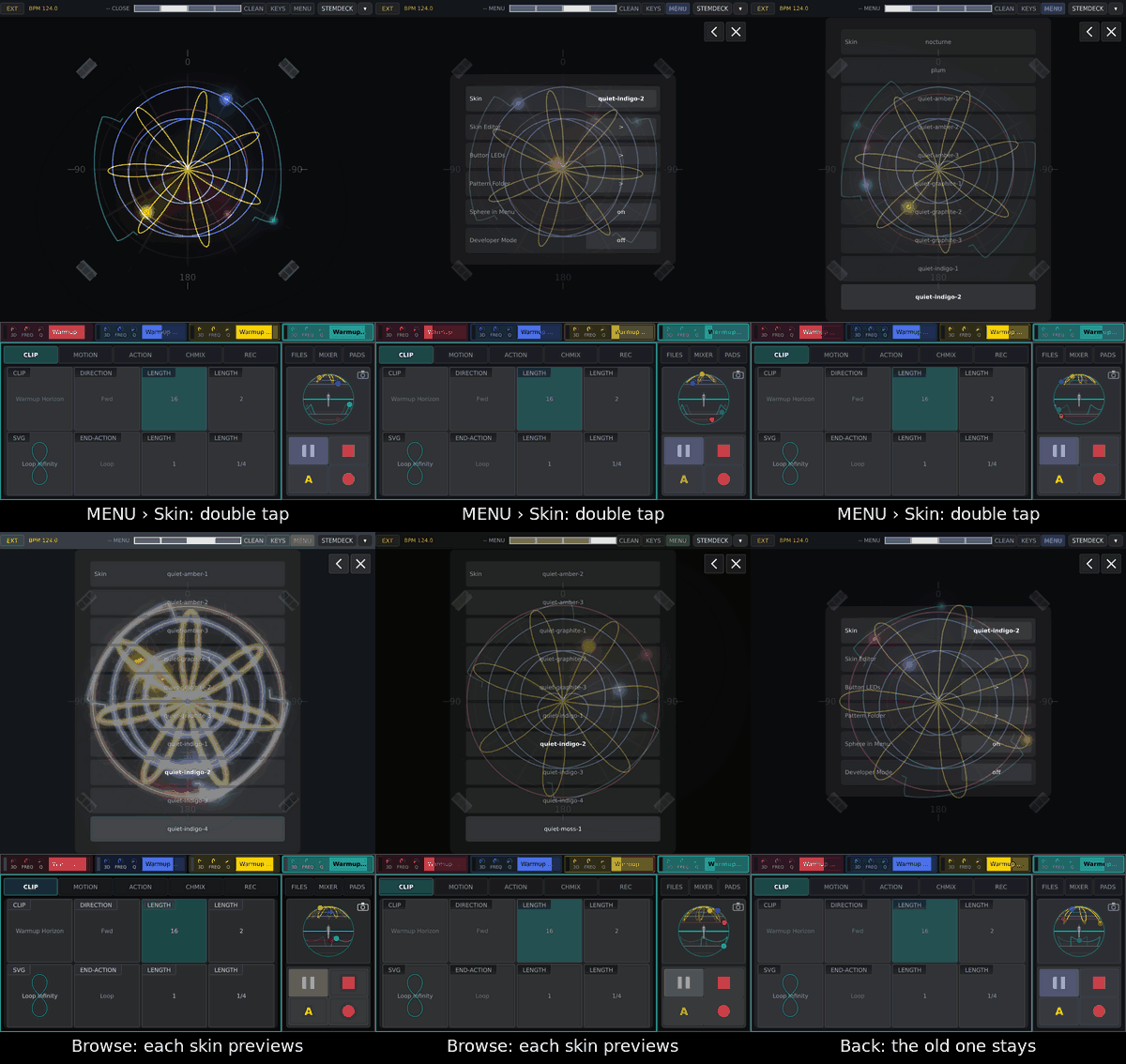
Another skin: MENU, double tap Skin; tap a skin to preview it, tap it again to keep it. Back goes to the old one (or ↑ ↓, ENTER, Escape).
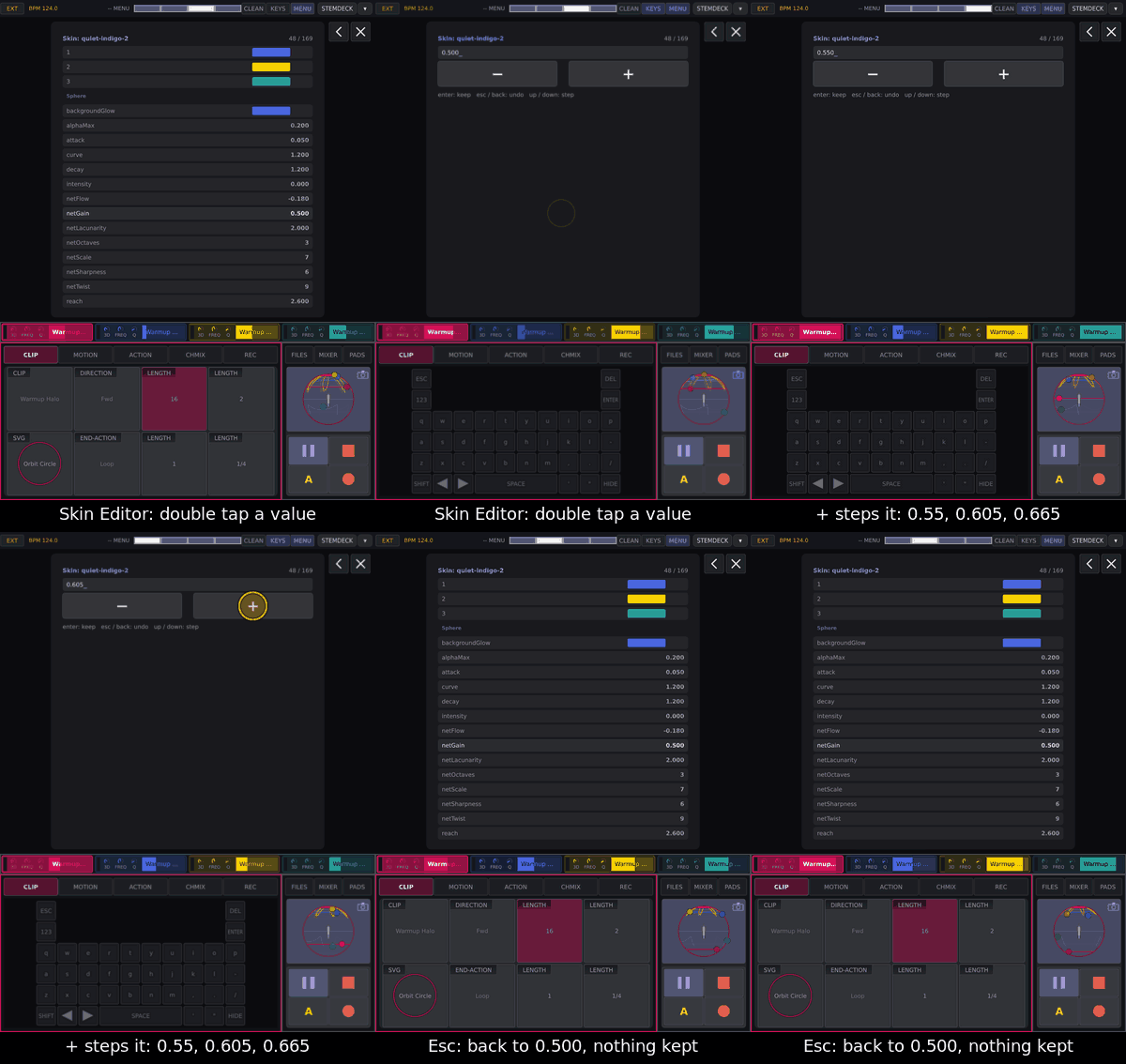
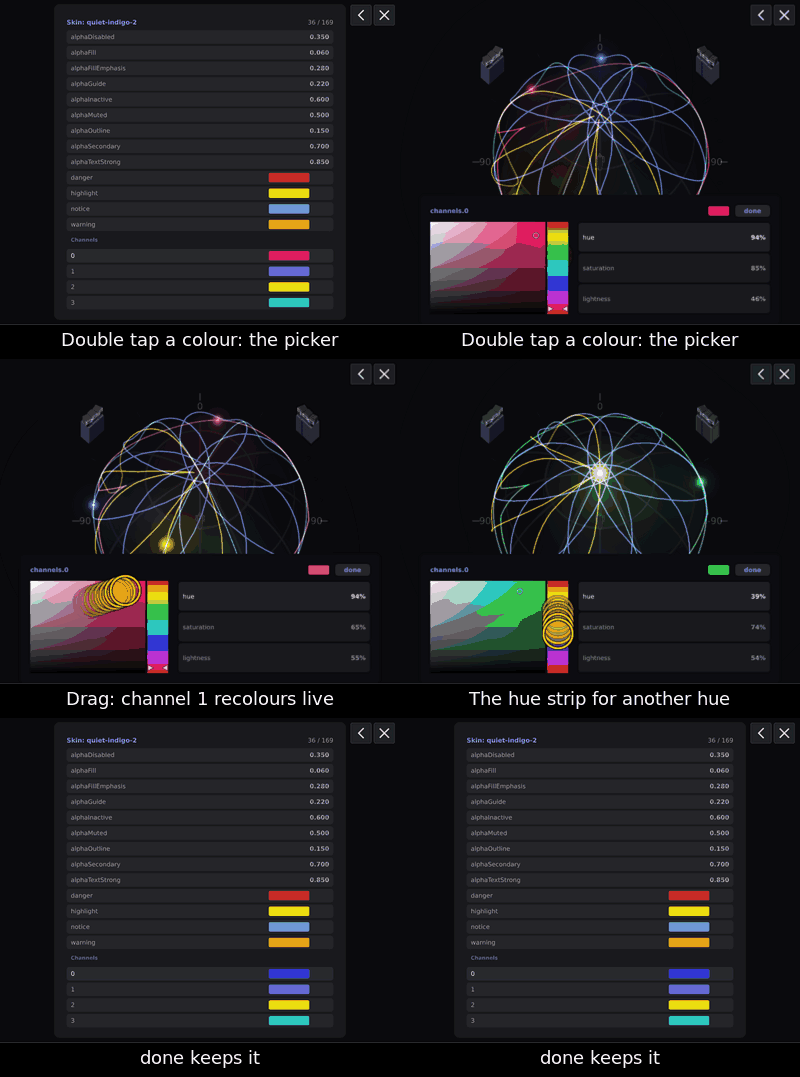
Your own: MENU › Skin Editor. On the default skin, leaving saves a copy called custom and switches to it, even unchanged.
Type on the device
The keyboard comes up by itself when there is something to type; KEYS shows or hides it.
Point the device at another Core
Not on the device: change a3-osc.json on the Core and every device
follows (Following Core, how).