Menu, skins and keyboard
The menu
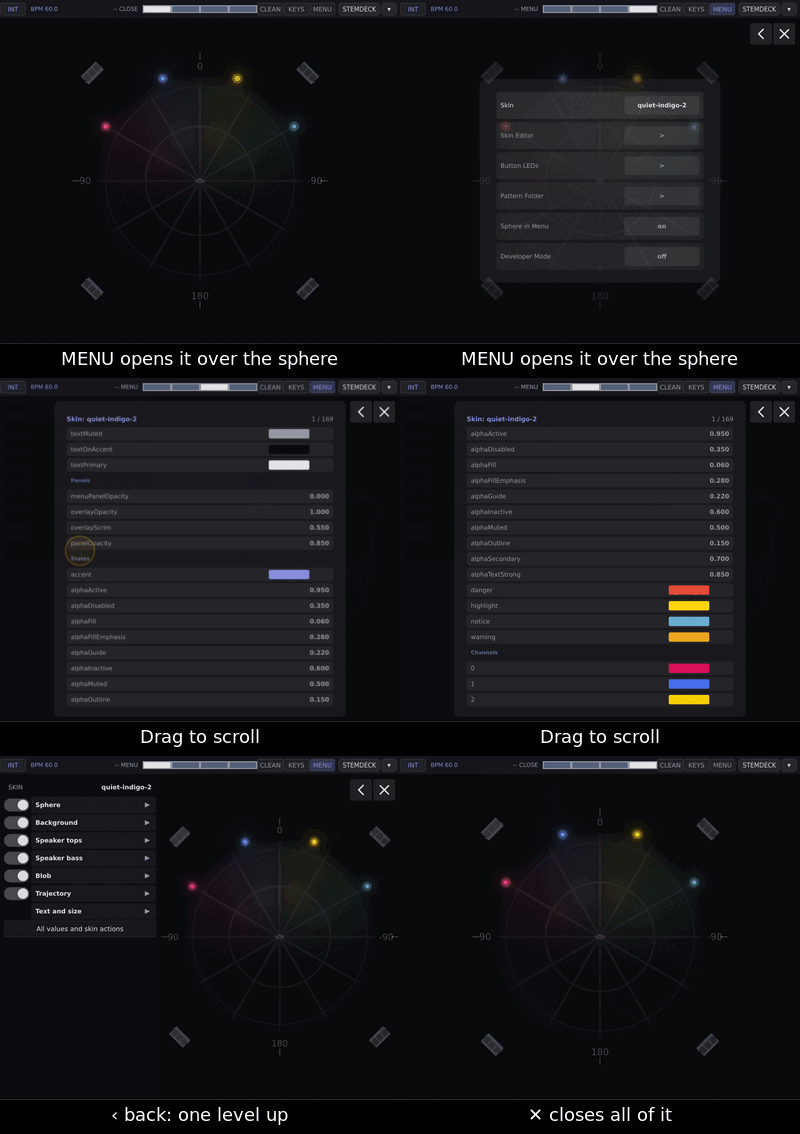
MENU (status bar or panel) opens over the sphere. Nothing here is needed to play.
Page |
Holds |
|---|---|
Skin |
the skin list: a tap previews, a second tap keeps |
Skin Editor |
every value of the loaded skin |
Button LEDs |
the panel’s key colours |
Pattern Folder |
where the library is read from |
Sphere in Menu |
on: the sphere keeps drawing behind the menu |
Developer Mode |
on: Save may overwrite shipped files. Off on a gig |
A value only changes in its edit box, never by brushing past:
Gesture |
Does |
|---|---|
drag the list or the strips beside it |
scrolls (two fingers as one) |
tap a page row (Skin Editor, Button LEDs, Pattern Folder) |
opens it at once — so a double tap lands its second tap inside |
tap another row |
selects it |
double tap or ENTER |
opens its value list, edit box or colour picker |
in a value list |
tap or ENTER chooses; Escape or back leaves |
in an edit box |
type; ENTER keeps; Escape, back or ✕ undo; skin numbers have − / + |
‹ and MENU close one level, ✕ all. Escape never quits the app.
Skin
A tap previews a skin on the sphere; a second tap on the same skin keeps and saves it (a double tap keeps at once). Back, or closing MENU, restores the running skin. ↑ ↓, ENTER and Escape do the same from the keyboard. Dragging only scrolls.
Skin Editor
Values under headings (surfaces, text, states, channels, sphere, type, touch, effects). Action rows on a double tap or ENTER: » Save, » Save as new, » Rename, » Delete (asks), » Reset (shipped values, same name).
Numbers: − / + step live by a tenth (integers by one); Escape restores.
Colours: the colour picker, live; done closes. No undo, Escape does nothing. Channel 1 is labelled
channels.0.Leaving saves the skin, changed or not; on the default skin it saves and switches to a copy, custom.
The keyboard
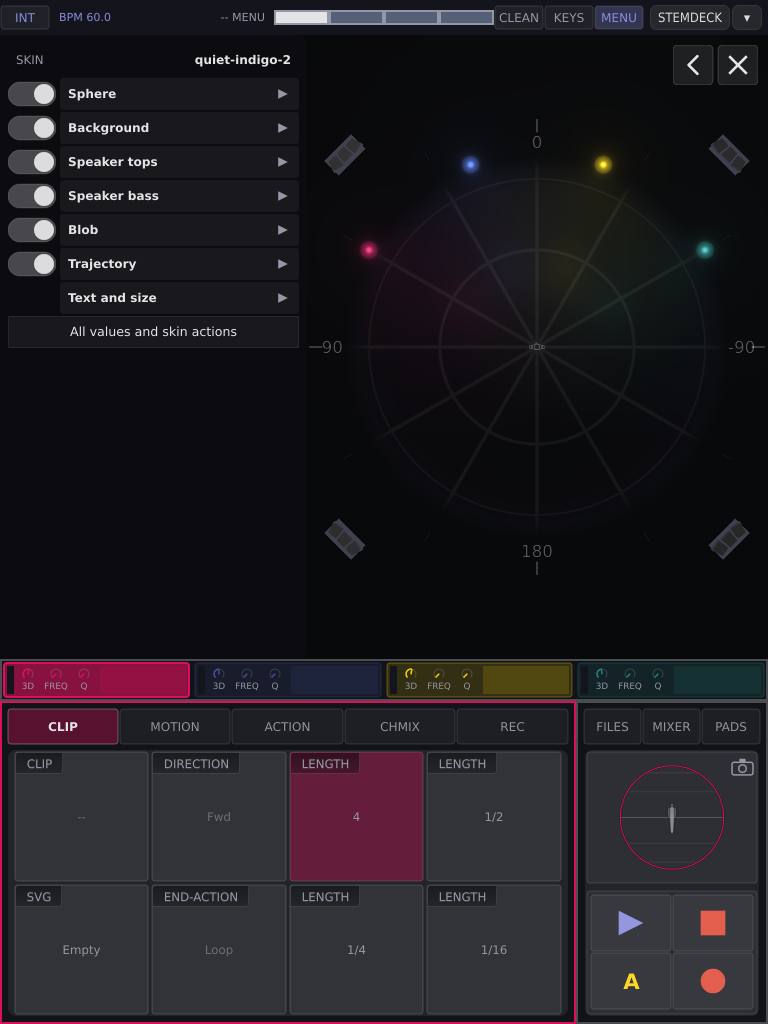
It takes the bar’s place, so fields stay visible above it. KEYS shows or hides it; it comes up by itself to type (Rename, the FILES editor, Skin Editor and menu values). HIDE hides it and leaves the field open.
Its 44 keys sit on the panel’s grid (ten by six, as PADS), QWERTY:
Row |
col 0 |
cols 1–8 |
col 9 |
|---|---|---|---|
0 |
ESC |
— |
DEL |
1 |
123 |
— |
ENTER |
2 |
q |
w e r t y u i o |
p |
3 |
a |
s d f g h j k l |
- |
4 |
z |
x c v b n m , . |
/ |
5 |
SHIFT |
◀ ▶ SPACE (four wide) ‘ “ |
HIDE |
123 swaps rows 2–4 to symbols (ABC goes back). No umlauts, no ß.
Row |
Symbols (123) |
|---|---|
2 |
1 2 3 4 5 6 7 8 9 0 |
3 |
- / : ; ( ) = + _ * |
4 |
{ } [ ] < > \ | ! ~ |
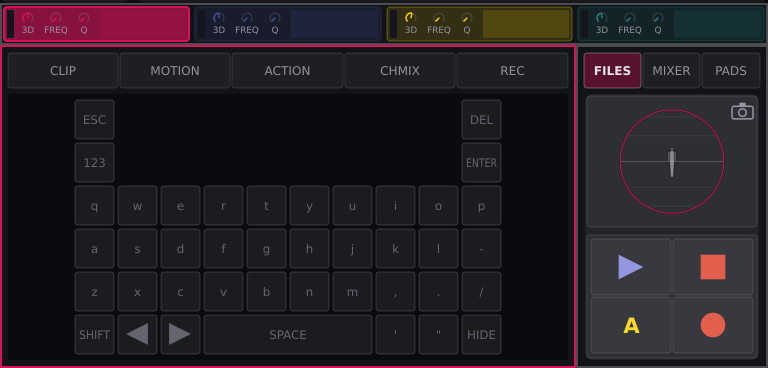
SHIFT: once a capital, twice caps lock, three times off.
On screen a key types on release (slide off to cancel); DEL and arrows act at once and repeat.
ENTER keeps a name (a new line in the FILES editor). ESC in a name, or back/close in the Skin Editor, undo.
While it is up, the whole panel types, each button the key in its place (left TAP = ESC, right TAP = DEL, right SHIFT = HIDE), on the press; the LEDs show the layout.
No pad fires and no key does its job; running clips go on.
HIDE or ESC gives the panel back; a key pressed while typing stays a key.
Encoder 1 moves the cursor; other encoders, SHIFT + encoder, pots and faders keep working.
Put the keyboard away before the next clip has to start.